Options to personalize EA on the Fxdreema
-
Hello friends, I would like to know if anyone can help me on some features I want to implement in my robot.
-
I want to limit the amount of order it can open, for example, it can only open a maximum of 50 orders per hour or per day.
-
I want to know how I do to set up alerts or alerts via email or message on my mobile phone, I would like to understand in detail how this would work, if it is necessary to set up somewhere smtp server or something.
-
Is it possible to implement any configuration where the robot communicates with Whatssapp or Telegram?
-
Is it possible for me to put some control to disable some block or enable it?
-
Would you like to put BreakEven, does anyone have any models to show me?
-
How do I configure Stop to track for example the price of the second to last candle after crossing the price line?
-
How can I set up a dashboard that displays current balance, gain amount, and loss amount information?
-
-
That's a lot of things to do.
 Have you tried any of them? Do you have any initial project to begin with?
 -
@l-andorrà said in Options to personalize EA on the Fxdreema:
That's a lot of things to do.
Have you tried any of them? Do you have any initial project to begin with?Yes, I made attempts but I was unsuccessful as a new user on the system, signed up for and created some EA but I found the need to try implementing some of these features, sorry if I put too many things, my intention was to try to summarize in a single matter everything I think is cool and necessary to have in an EA in terms of customization.
-
@fabiobioware said in Options to personalize EA on the Fxdreema:
Telegram
Okay, I'll give it a try:
-
Limit orders per hours or day:
Use a counter variable and add +1 on each order open execution. Reset that variable eg. on the "on Timer" tab at a certain time of the day or hourly. -
There are several blocks for external communications
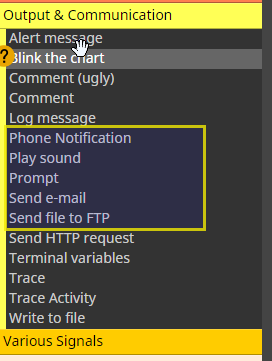
Use any of those blocks for your need. Of course you need to setup phone notfifications or emails in the terminal correctly. -
Not an easy one for beginners maybe, but here is an example how to send a screenshot to Telegram.
-
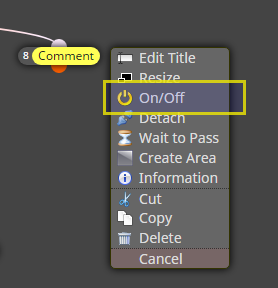
You can specify if any block is disabled or enabled (default) when EA starts by right click on that block.
And there are blocks available that allow for expicitly turn of / off or toggle block on/off state
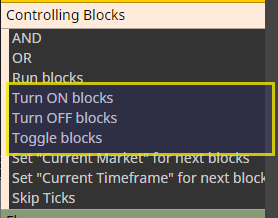
Keep in mind that disabling a blog in a connection path will avoid that other blocks connected after the switched off one will be executed either!
- There is a block for set to BE
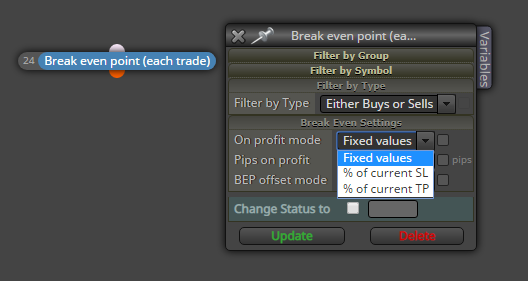
Use any you configuration that suites to your strategy. Unfortunately there is no one fits all solution!- There are lots of posibilities to do so. And there is als an exitsing block.
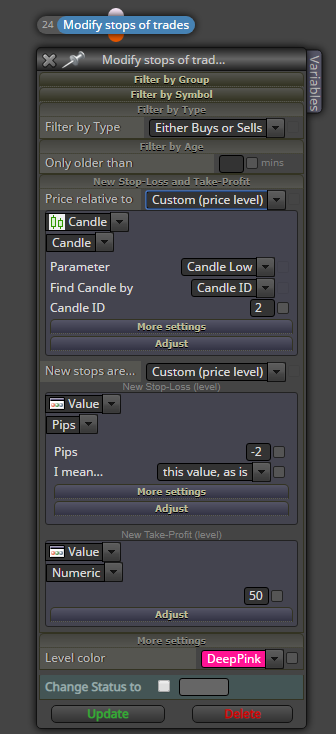
Check what exactly you need.
- Output to the chart is not so trivial as it seems. Use a Comment block for start I would suggest (See screenshot in Point 2).
Please specify closer what you mean for loss/gain amount! What what period for instance. Does this information need to be displayed per chart (EA instance) or for all insastances? Does it need to "survive" a restart of EA / terminal?
-
-
An impressive summary trader.philipps! :O.
-
@trader-philipps thank you .
Thanks for all the help, I am trying to evolve with the other parameters but your help opened my mind to go beyond what I needed. Thank you very much.
