
#Types Of Objects
Use the scroller in the following field to see all types of objects:
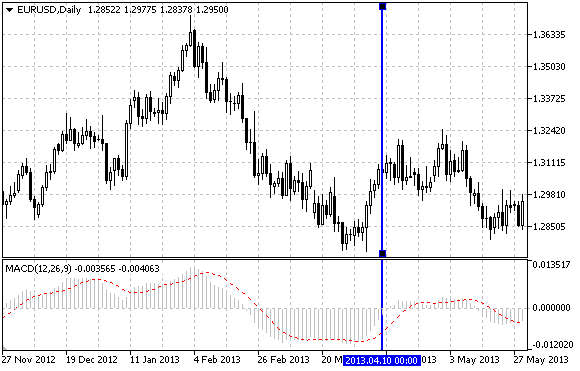
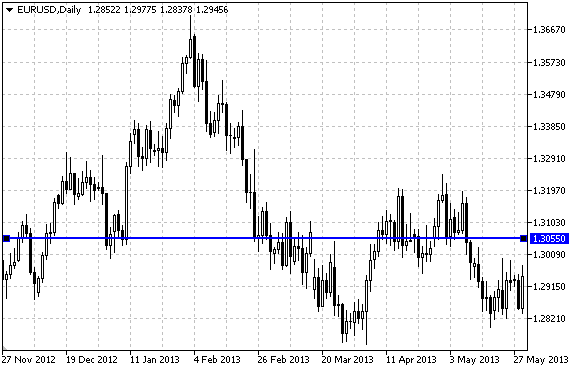
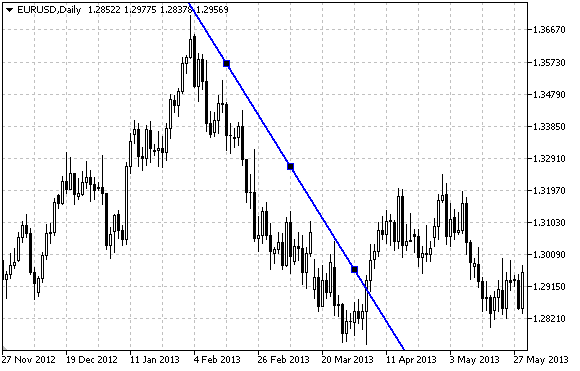
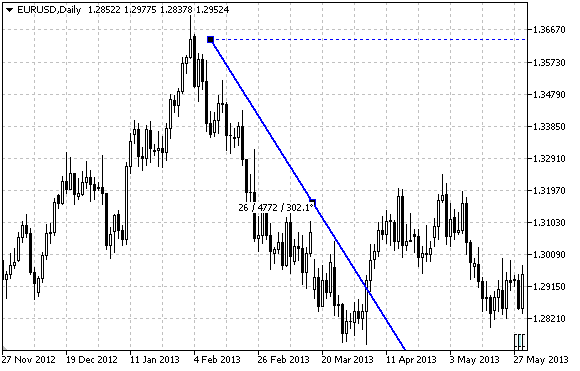
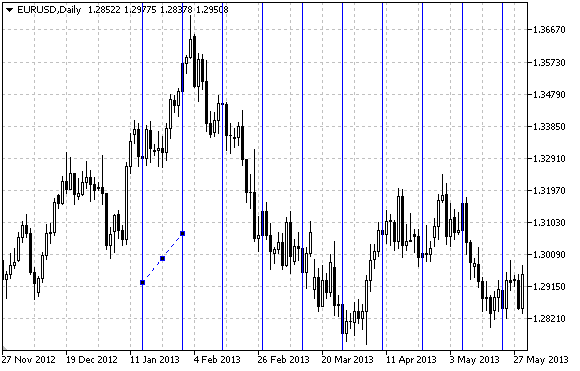

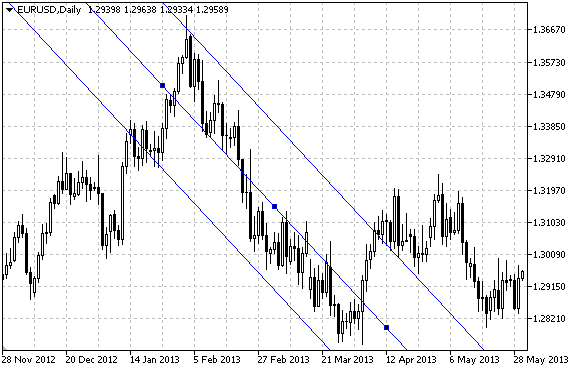
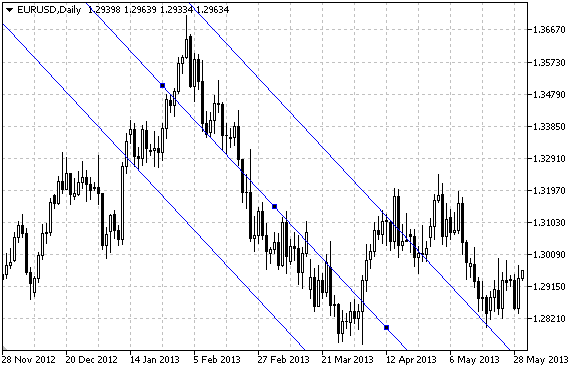
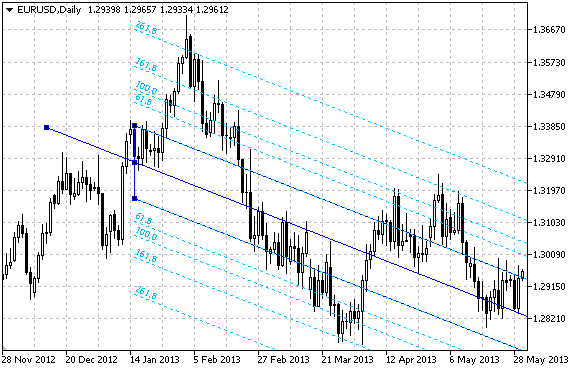
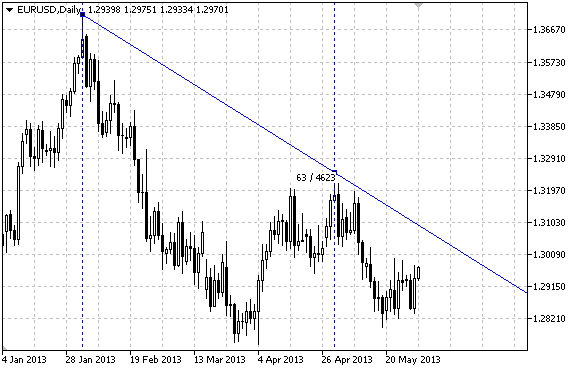
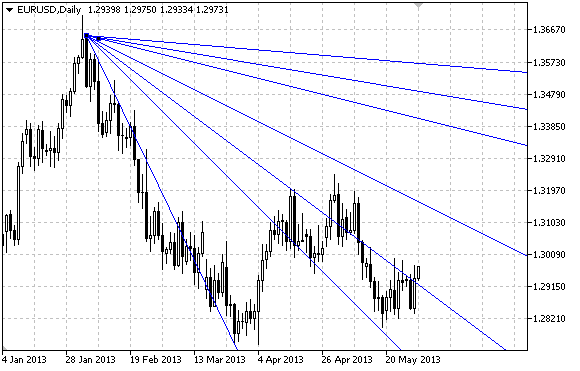
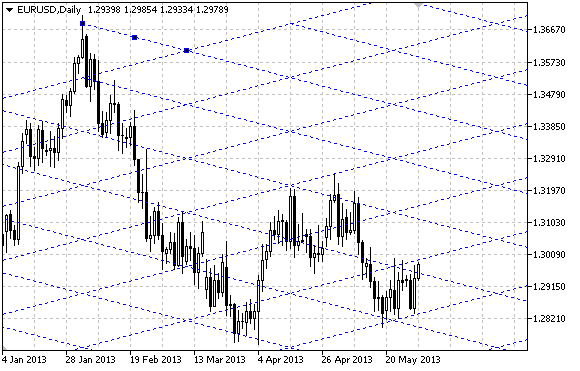
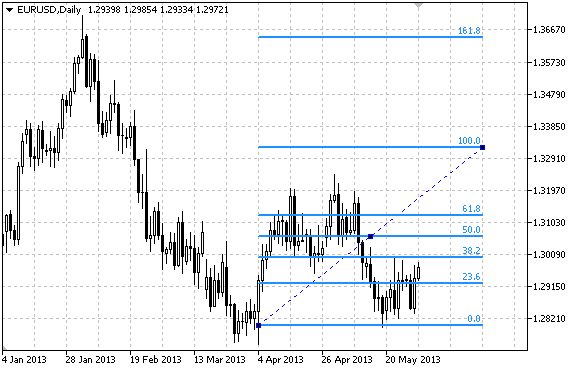
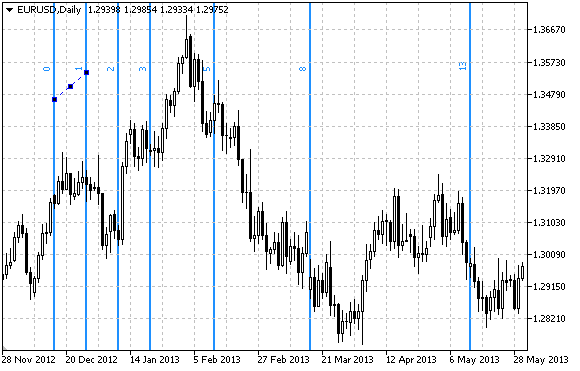
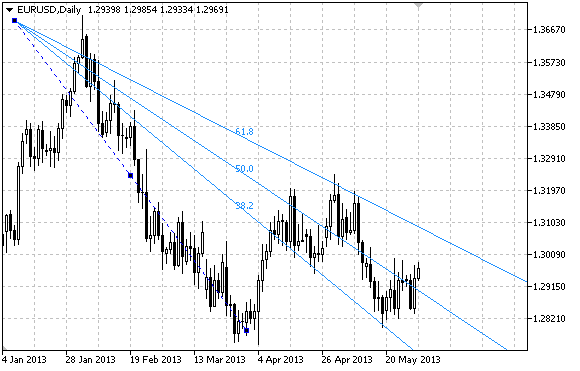
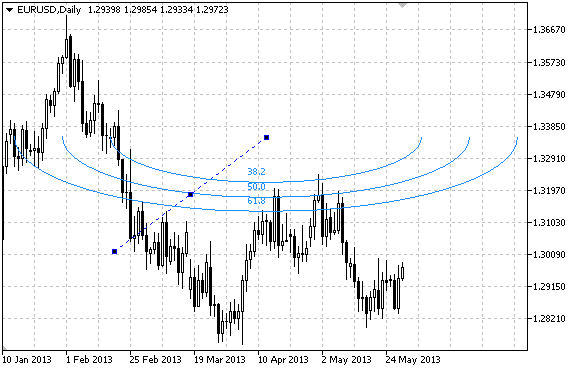
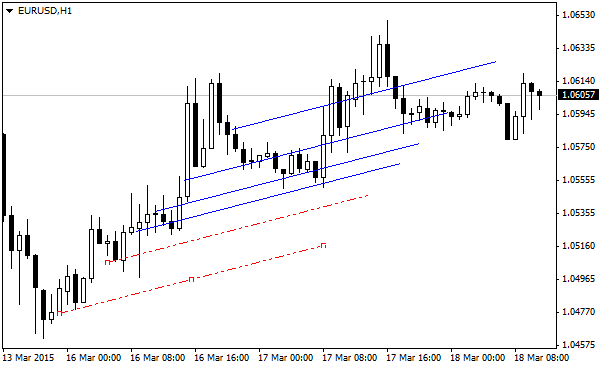
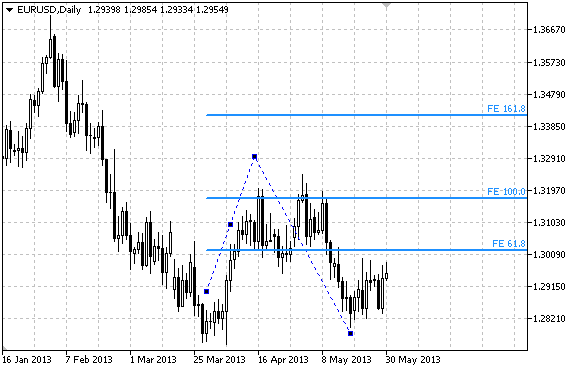
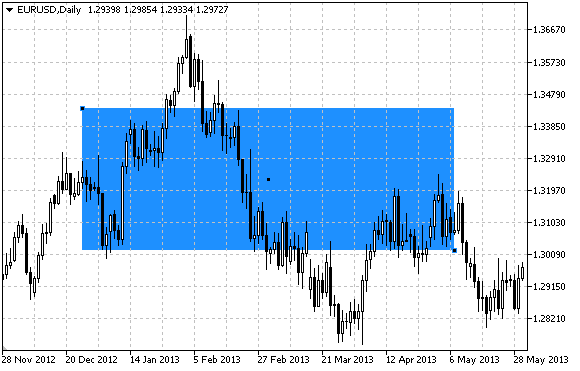
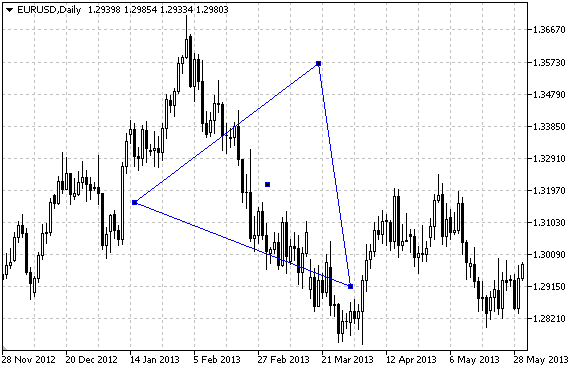
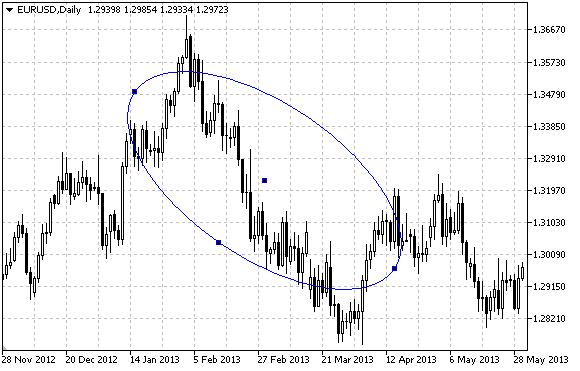
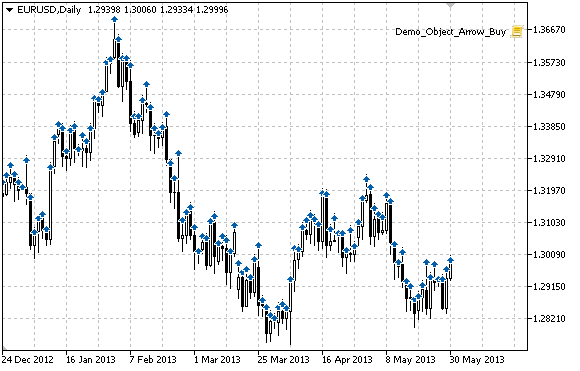
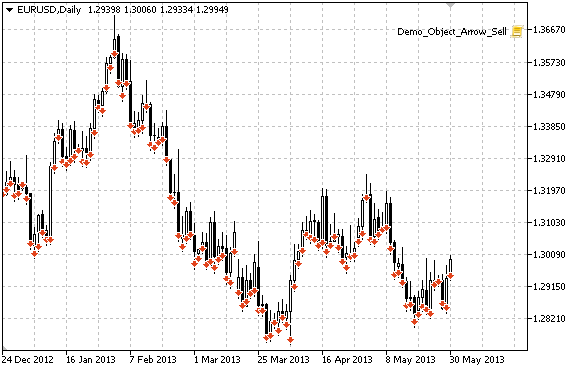
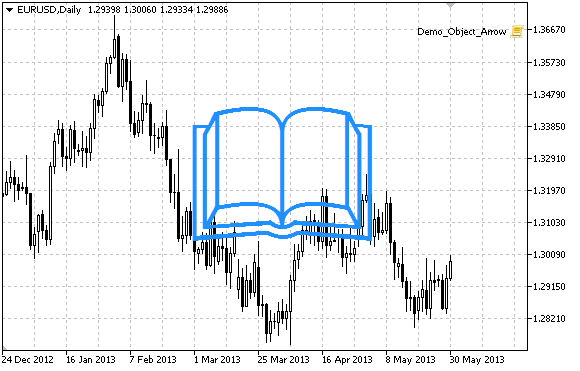
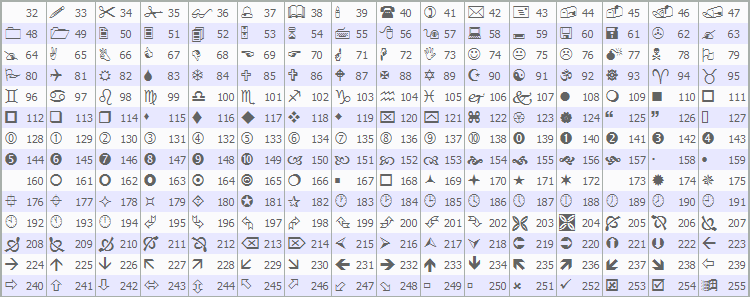
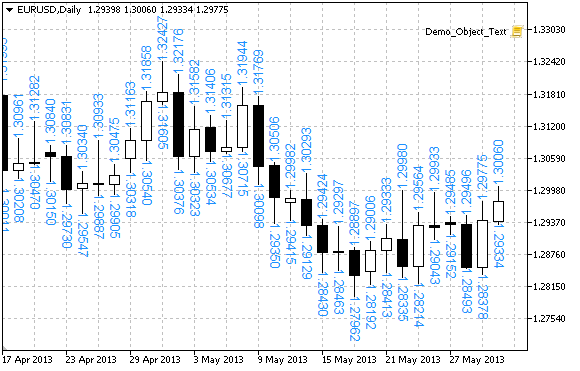

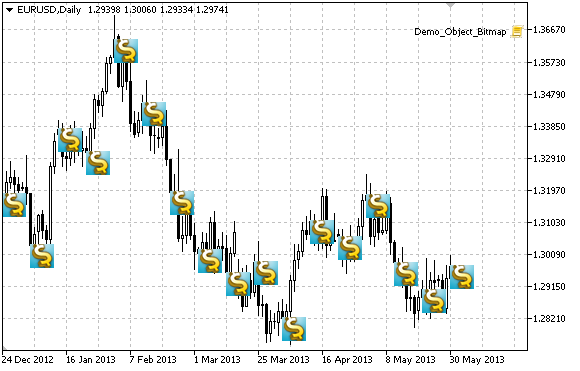
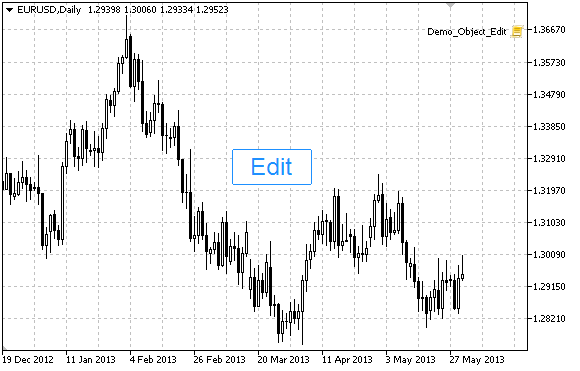
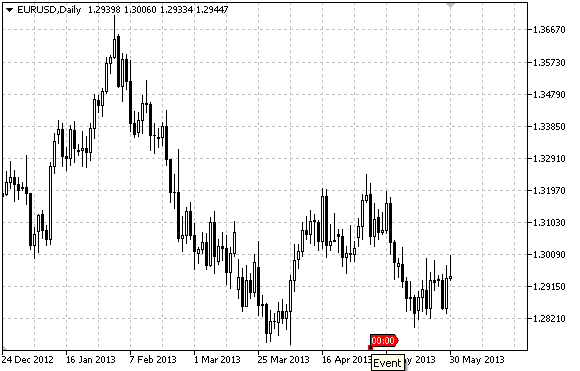
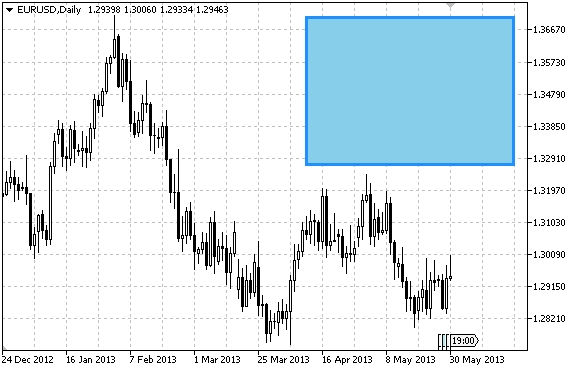
See the object types from the official documentation here for MetaTrader 4 and here for MetaTrader 5
#Object Properties
You can draw objects on the chart not only manually, but also automatically with your trading robots - Expert Advisors, Scripts and Indicators. There are few things to consider:
- Unique names - each object has unique name on the chart, you can't put two or more objects with the same name on the same chart.
- Create, Read, Update, Delete - you can do any of these in your program, but first you must select the object you want to manipulate by name.
- Select by name - in your programs, when you want to work with one particular object, you can select it directly by its name.
- Search for an object - or, when you don't know the name of the object you want to select, you have to search for it by other signs - type, color, some text in its name...
- Indicator lines cannot be selected (most of the time) - although indicator lines and histograms are also some kind of graphical objects that you can see with your eyes, you can't treat them as a regular objects in your program. Instead, you shoud work with with the output buffers of your indicators. It's also true that some indicators are drawing regular objects on the chart and in this case you can select and manipulate each individual object. With a little experience you will be able to distinguish the types of objects coming from your indicators.
This is how to see the list of objects in MetaTrader (right-click and then Object List):
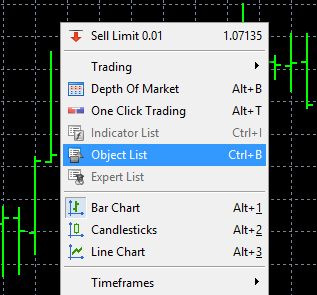
Below you can see some of the object properties, but note that not all properties belong to all objects:
- Time coordinate 1, 2 and 3 - depending on the type of object, it can have 1, 2 or 3 points and each point has Time coordinate.
- Price coordinates 1, 2 and 3 - the same as above, but for the Price coordinate.
- X (left) and Y (top) offsets - for objects with static position on the chart, this is the offset from the top and the left side of the chart window, measured in pixels.
- Color - for most objects this is their color.
- Font, Font size - for text objects.
- Line Style - lines can have solid, dashed, dotted, dash-dot or dash-dot-dot style.
- Width - the thickness of the object.
- Angle - some objects can be rotated.
- Corner - in which corner to put the static object - upper left or right, or lower left or right.
- Anchor - location of the anchor point of a graphical object.
- Background flag - whether or not the object appears behind the candles.
- Ray (right) - for some lines, whether or not to draw the line until the end of the chart.
- Selectable - allow or disallow selection of the object when you double-click.
- Selected - the initial state of the object, it can be selected or not.
- Visibility - to see or not to see the object in the list of objects.
- Z-Order - used when you want to position one object over another. The object with bigger Z-Order appears on top of other objects.
- Sub-Window - the ID or the Name of the window where you want to put or you have the object you want to work with. The ID of the main window is 0 and if you have sub-windows, their IDs are like 1, 2, 3 and so on.
See the object properties from the official documentation here for MetaTrader 4 and here for MetaTrader 5.
#In fxDreema
Create / Update Object On The Chart
There are certain blocks in fxDreema designed to create and/or update objects on the chart. The name of each of these blocks starts with Draw.... When such block runs, it will either create a new object or update existing object. This depends on the 2 parameters on the top, named A and B for short:

So, every time that Draw Arrow runs, one of the following will happen:
- If A is Yes and B is Yes - If no arrow was created for the current bar, a new arrow will be created. If there is an arrow for the current candle alredy, it will be updated.
- If A is Yes and B is No - If no arrow was created for the current bar, a new arrow will be created. That's all.
- If A is No and B is Yes - When the block runs for the first time, a new arrow is created. Then the same arrow is only gonna be updated.
- If A is No and B is No - A new arrow is created every time the block runs.
In the first two cases the same block controls multiple arrows. Because object names are unique, we can't have multiple arrows with the same name. That's why the 3rd parameter is the prefix of the name of each object. After the prefix, some numbering will be appended.
In the last two cases, because only one arrow is ever created by the block, you can give a name of that arrow object.
Read Object Properties
Each object has an unique name in the chart, so in order to read the properties of a particular object, we first need to select it by name. If we know the name, it's easy:
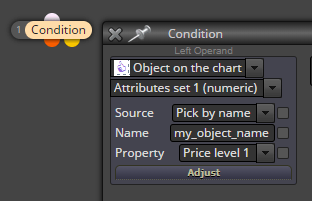
What if we don't know or don't care aboud the name of the object? Then we can search for an object, or even multiple objects with certain properties - type, color and so on. This is how to do it:
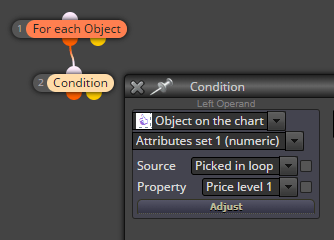
The For each Object block is scanning through the available objects on the chart and picks only those who meet the criteria in the filters of this block. For each object that meets all the criteria, the block's output becomes active and the Condition block runs. You can see that in we have selected Picked in loop there, so in Condition we are working with objects selected in For each Trade.