
#Download and Install MetaTrader
MetaTrader is developed by MetaQuotes and you probably already have it installed on your PC. If you don't have it, you should be able to download it from the website of your broker. Just in case, here is where you can also find it:
- MetaTrader 4 (stopped development)
- MetaTrader 5
#MetaTrader - Data Folder
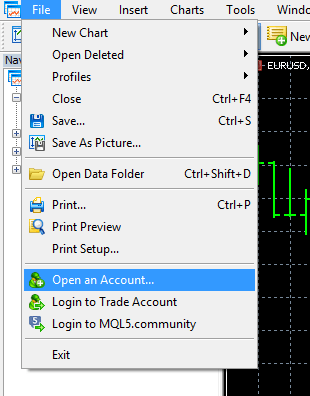
Because the end product of fxDreema is a trading robot (Expert Advisor or a Script), which is a file, you need to know where to put it. Your trading robots, as well as other user files are located somewhere in your hard drive. To find out where, go to File -> Open Data Folder:
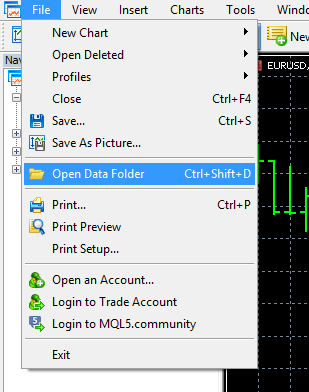
By default your Data Folder is separated from the installation folder of MetaTrader for security reasons and is located in a location that looks similar to this:
C:\Users\JohnSmith\AppData\Roaming\MetaQuotes\Terminal\E6E3D0917DD641581E4779524EB3B1AA
Inside this folder you have another folder - \MQL5 (or \MQL4, depending on the MetaTrader version) - in which you will find the most important folders that you will use:
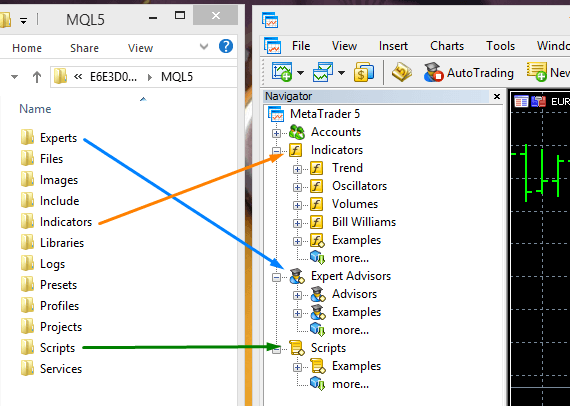
- \Experts is where your Expert Advisors are located
- \Indicators is where your Custom Indicators are located
- \Scripts is where your Scripts are located
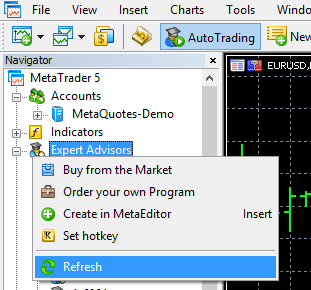
You can put your robots in these folders. When you do that while MetaTrader is running, you should also Refresh the list in the Navigator, as shown in the picture below. The other way is of course to restart MetaTrader.
#MetaTrader - Portable Mode
If you prefer your MetaTrader to be outside \Program Files with all robots located in its main folder, then you can force it to run in portble mode. To do this, edit the properties of your shortcut like in the picture below. Add /portable (forward slash followed by the word "portable") at the end of the Target property. Don't forget to rename your shortcut as well.
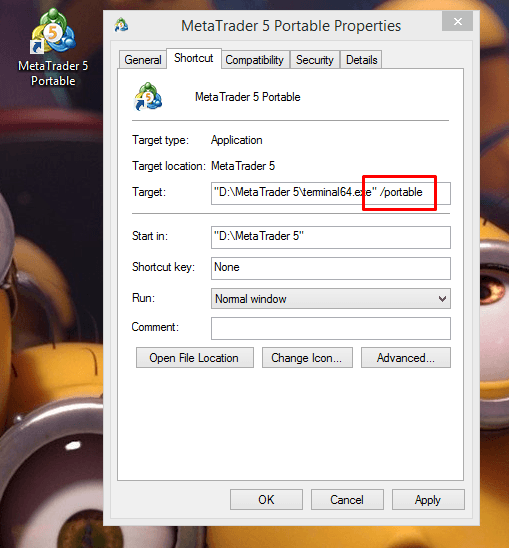
Now the Open Data Folder option will send you to D:\MetaTrader 5, where you can find your \MQL5 folder with all the important subfolders.
#Create a Demo account
Now you can create a new Demo account in MetaTrader. It's a very good idea to always test your robots on a Demo account first, because you don't want to accidentally lose money in your Real account. Mistakes happen all the time while developing a program.
#Test in Visual Mode
In MetaTrader 5 you will find this checkbox called Visualization. In MetaTrader 4 the same option is called Visual mode, it's the same thing.
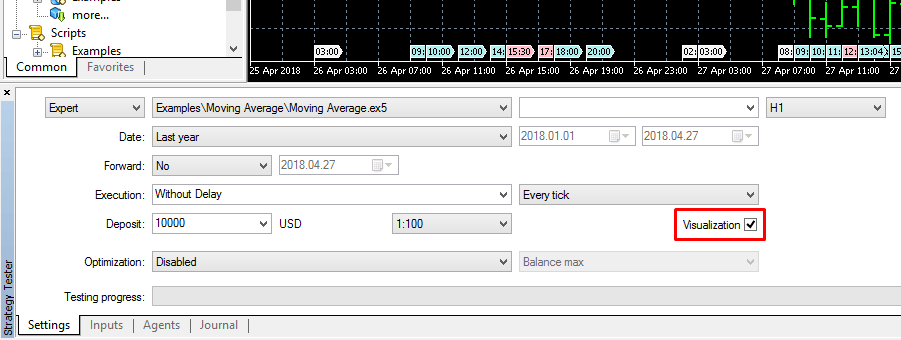
In this mode you can backtest your strategy while watching it evolving on a separate chart. The speed is faster than realtime, but slow enough to see any detail of the strategy you are trying.
#Easily Download Files
There is a special extension for Chrome, designed to automatically download and write the output files in the target local folder.
Here is how it works. When you download a file for the first time, the browser uses Save As to download it. Once the file is downloaded, the extension remembers its name and destination. After that, every time you try to download a file with the same name, the extension will automatically put it into the target destination and you will not be asked to download it again.
But first, in fxDreema you need to set up the data folders, as shown on the picture below:

Get these paths from File -> Open Data Folder in MetaTrader:
Now the extension will remember and automatically download/rewrite each file that you initially download in the Data Folder. If you download a file in other folder, for example on the Desktop, it will not be remembered. This also means that if you change the Data Folder, you will have to Save As each file once again.
If the extension stops working, reinstall it. This will reset its memory. This problem is very rare, but it happens.