fxDreema

    • Register
    • Login
    • Search
    • Back to the main page
    • Categories
    • Recent
    • Tags
    • Popular
    • Search
    1. Home
    2. padletut
    3. Best
    P
    • Profile
    • Following 0
    • Followers 5
    • Topics 7
    • Posts 47
    • Best 6
    • Controversial 0
    • Groups 0

    Best posts made by padletut

    • Let user select Money Manager in EA properties

      Just a small tutorial on how to let user select Money Manager

      First create a custom block in fxdreema studio

      How to create the custom block:

      I named the block Select Money Management but you can choose the name you ever want to.

      Select the created block, add the following code in Global variables, includes window:

      // Define an enum for money management options
      enum MoneyManagement
      {
          equityRisk, // Risk % of Equity
          balanceRisk, // Risk % of Balance
          freemarginRisk // Risk % of Free Margin
      };
      

      Save Changes
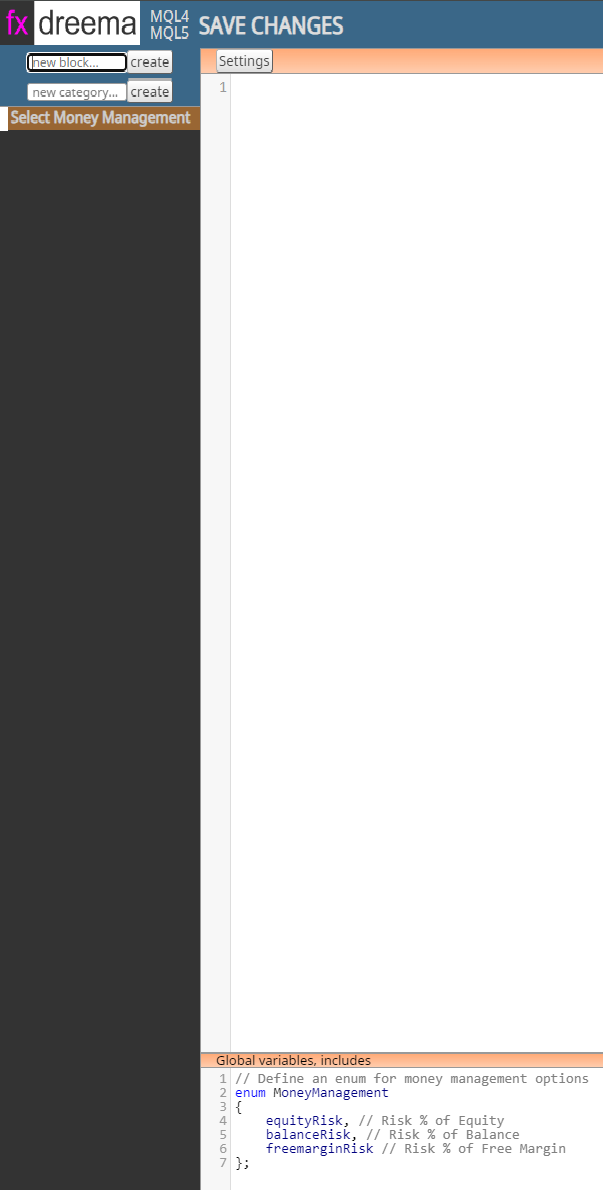
      5ff3f5da-0f68-4750-a638-e279e33fc08d-image.png

      In your fxdreema project

      Create a constant following

      Type: MoneyManagement <- The enumeration we created in fxdreema studio
      Name: selectMoneyManager or what name you want...
      Value: one of the values we defined in MoneyManagement enumeration, example: equityRisk
      Description: Money Manager or whats on your mind....
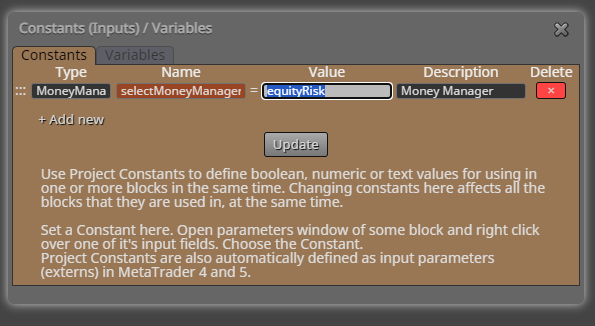
      ea71ecda-a97d-4ec3-84ee-9605dfd3fcb2-image.png

      Next step is to create a variable where we later is storing the selected money management string name

      Variable
      Type: string
      Name: selectedMoneyManager or whatever you choose...
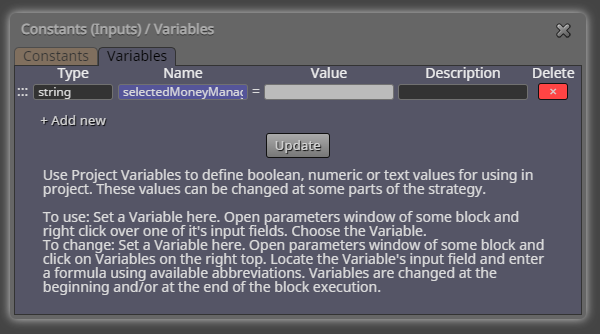
      95b6c45a-a971-4430-9a0d-b195ce8dde23-image.png

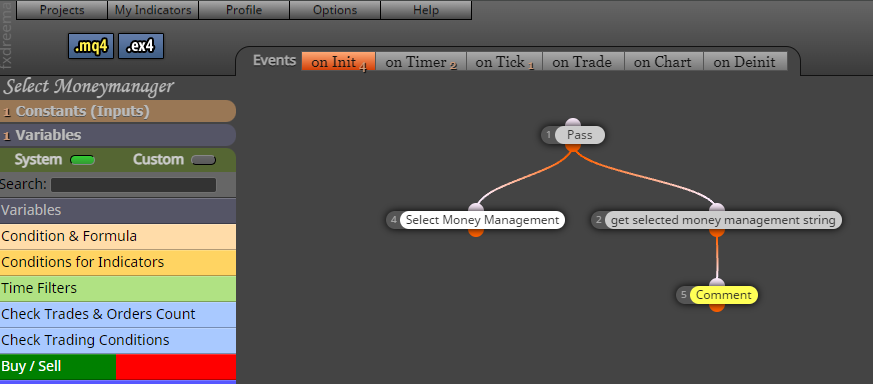
      Next step is to add the blocks:

      402ea0f7-b166-43d7-95a1-9430551f5d45-image.png

      Add the custom block you created "Select Money Management"
      Add "custom MQL block"

      Code for the custom MQL block:

      switch(selectMoneyManager)  // <- Name of the constant you created
      				 {
      					  case equityRisk: selectedMoneyManager = "equityRisk"; break; // Save to variable
      					  case balanceRisk: selectedMoneyManager = "balanceRisk"; break; // Save to variable
      					  case freemarginRisk: selectedMoneyManager = "freemarginRisk"; break; // Save to variable
      				 }
      

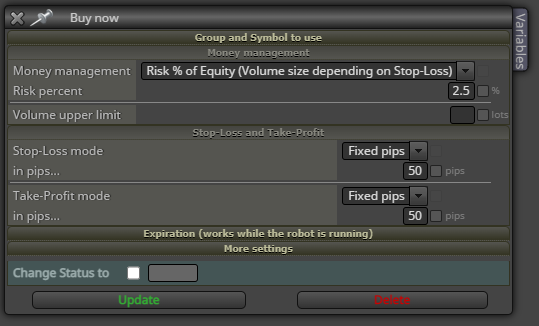
      In the Buy/Sell block:
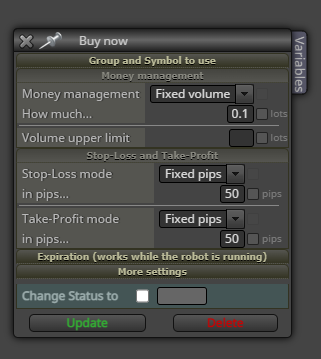
      870e6599-469f-4ab7-ab25-feea936cae8a-image.png

      In this case I have choosed Risk % managements as you can see in enum MoneyManagement

      First select one of the Risk % management
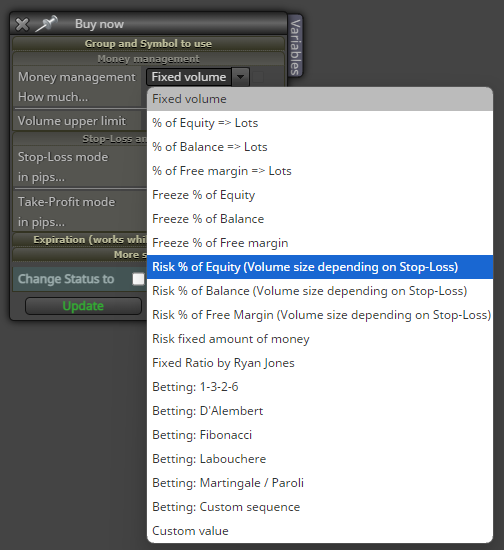
      b2d4c2c4-37d3-4c3e-88f3-e5115586e840-image.png

      Example Risk % of Equity selected:

      02db158d-5362-4720-b4e3-c51c7803602b-image.png

      Now rightclick at the Money management field and select the string variable you created (selectedMoneyManager)
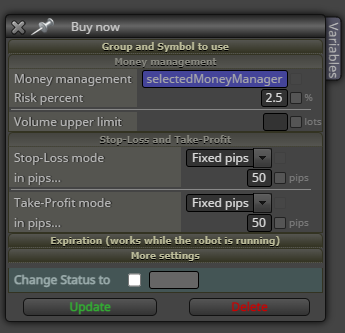
      cef6c6ea-e9c3-4660-8f01-020e4758f677-image.png

      That's all!
      It should now be possible to change the EA Money Management in MT4
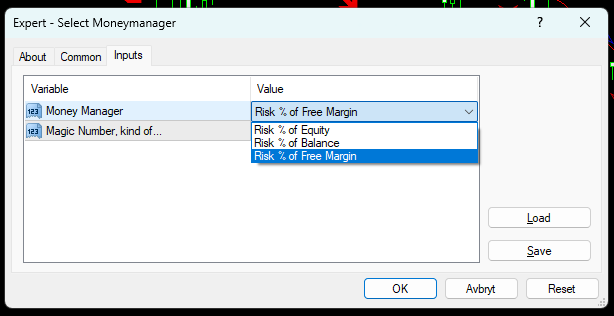
      1a6817cd-2c5a-4c62-be63-ca33a1b73f5b-image.png

      Example project: Select Money Manager

      posted in Tutorials by Users select money management properties
      P
      padletut
    • RE: Custom Indicator Help

      @bruno-3

      1 - Yes you can leave it empty if you don't want to change any standard inputs
      2 - I was using Trace and looking where the value was triggered on chart
      3 - Yes

      posted in Questions & Answers
      P
      padletut
    • RE: example: Save variables into file and read them back [advanced]

      An old post, but Thank you again @miro1360 ❤

      posted in Tutorials by Users
      P
      padletut
    • RE: How to EA- turn off Auto Trading disable after profit got hit

      I really don't think it's possible to change a terminal properties like Trade permission, why not store profit target in a variable then use it in a condition block?

      https://docs.mql4.com/runtime/tradepermission

      posted in Questions & Answers
      P
      padletut
    • Backtest newsfilter MT4 (Tutorial) (CSV)

      Hello, I was really missing newsfilter for backtesting EA.
      So I figured out how to make a newsfilter for backtesting, the newsfilter is reading a csv file and plots the news in the backtester chart.

      Link for the project: https://fxdreema.com/shared/iz0WMIVJd
      Source code of the project: 0_1620495687291_Backtest newsfilter.mq4

      A screenshot of how it looks like in backtester:

      0_1620495768506_23d46e69-a16e-4b4b-a722-53ad92c9fa08-image.png

      If you use the project share link and not import the source code, here's the Constants and variables to add in pictures below:

      0_1620495952690_c2c8f4e9-9ad5-49d4-aa18-d6cfbbab501b-image.png
      0_1620495982105_bba29520-cd03-4264-8ab7-c08aa6a9c1f8-image.png

      Now you will need to download the news from FXStreet

      First you choose the period for news, it looks like max period at time is 3 months. So if you want more than 3 months historical data then you will need to download all periods and merge it to a csv file.

      0_1620496217515_8ed932f8-37d4-4f99-b3d6-83363113e042-image.png

      After you choose period for news you will need to download the list, like in picture below:

      0_1620496378577_4e31ea46-c94e-4e53-8d3d-893e11a8267a-image.png

      After the newslist is downloaded, you will need to edit the list. I am using EmEditor for that.
      Open your csv file in EmEditor (Ctrl-O)

      File open in editor:
      0_1620496538398_62398db9-19b8-48b6-a6a2-f93262c84571-image.png

      First thing to do is to delete the first column, right click on the top of the first column and select delete column

      0_1620496646476_5c985e75-4d99-4c89-bbb2-82186bbeab8e-image.png

      Column deleted:

      0_1620496690038_3447132f-2391-4125-8c35-36daf4cfc18d-image.png

      Now we need to split the date and time column, rightclick on the Date time column and select "Split column"

      0_1620496837474_6ed972d8-ac58-4648-a89e-196d5248c760-image.png

      In the Split column window, make one space(spacrebar) in Seperator entry and click Ok button

      0_1620496927984_035232c3-e8d6-44b0-9ded-2dd5cbf0b18a-image.png

      The Date and Time(hours) is now splitted into 2 columns
      0_1620497025247_1300eb46-9996-41f3-a641-f526fb9548a1-image.png

      Next step is to convert the Date format so MT4 can use it, open replace window (Ctrl-H)
      In the "Find" you write exactly this string: ([0-9]{1,2})/([0-9]{1,2})/([0-9]{2,4})
      In the "Replace with" you enter exactly this string: \3.\1.\2
      Choose regular Expressions and click on "replace all" button.

      0_1620497310748_e4adf126-e4e4-485e-8874-be2fe74836d6-image.png

      The list now looks like this:
      0_1620497363958_a21f2f4d-6746-4843-acf1-816d97294ea5-image.png

      Now select all columns in the first row, then rightclick and select "Delete" from the dropdown menu.

      0_1620497570961_de2fc6d7-1c41-4e37-9ca8-ab200af41b17-image.png

      Ok! 🙂 The list is now finnished, you can now save it.

      0_1620497622328_3112139f-1fe0-4ec9-a19d-40376dc8726f-image.png

      You need to put the list(csv file) in your terminal ./tester/files/ folder

      0_1620497951724_f4234cdc-7b26-474b-b897-6499652cc26c-image.png

      In MT4 backtesting Expert properties remember to write in the file name for the file you just putted in the tester/files folder.

      0_1620498068048_932eded1-5435-4a53-9aa0-a77148971700-image.png

      That's it, I hope you enjoy my newsfilter for backtesting 🙂

      posted in Tutorials by Users
      P
      padletut
    • Tutorial on how to get locale and broker GMT, and calculate the GMT Offset

      Hello 🙂

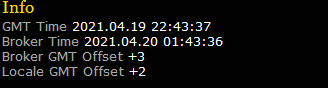
      I made a small MQL4 project to get and display the GMT time, Server time and the locale computer time. Then calculate the GMT Offset and display it on the charts.

      There might be a more easy way to do this? Well here's my solution anyway 🙂

      Screenshot of how it looks like on the chart:

      0_1618872266073_2f3865e1-7d32-4813-9e3a-7a4131c00a7b-image.png

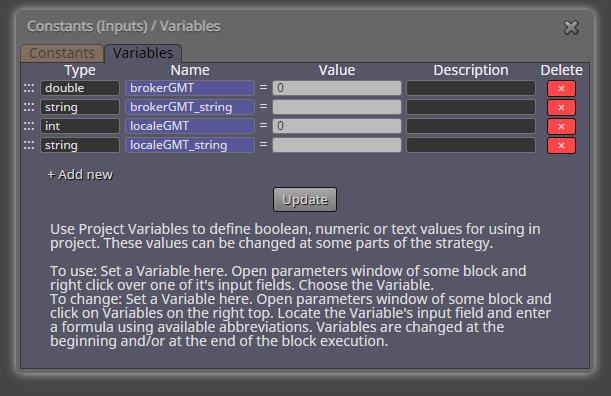
      You need to add the following variables into the project, showed in picture below:

      0_1618872931448_30825fc5-f610-4458-b3c8-88933c0e7285-image.png

      Link to the project: https://fxdreema.com/shared/S7pIRQj6d

      I Hope you enjoy it 🙂

      posted in Tutorials by Users
      P
      padletut
    • 1 / 1