fxDreema

    • Register
    • Login
    • Search
    • Back to the main page
    • Categories
    • Recent
    • Tags
    • Popular
    • Search
    1. Home
    2. miro1360
    M
    • Profile
    • Following 0
    • Followers 257
    • Topics 27
    • Posts 1611
    • Best 192
    • Controversial 5
    • Groups 0

    miro1360

    @miro1360

    Important: Only this is my real account.

    Check all my replies in the forum, your big chance to learn something.

    Please don't ask me questions by private messages about creating EAs (it most likely ends with no answer).
    Ask in the forum, because there are people in their time of willingness, as I was once.
    Your question in the forum should be clearly defined:

    • by non-conflicting conditions
    • the more detailed conditions the better
    • one scribbled image is more than a thousand words

    I like to add my help only to questions which:

    • weren't discussed before
    • are demanding but aren't time consuming
    • are defined by non-conflicting conditions + pictures
    • are likely to push you forward, not backward (the most crucial)
    • by mood, randomly :D
    251
    Reputation
    18630
    Profile views
    1611
    Posts
    257
    Followers
    0
    Following
    Joined Last Online
    Location -

    miro1360 Unfollow Follow

    Best posts made by miro1360

    • Tutorial 07 - Read prices from indicator objects

      We are going read values from Objects on the chart which are controlled by indicator, not values from buffers, that means, we dont need indicator in My Indicators because we are not going work with indicator directly.
      Indicator must be inserted into chart manually (into same chart with EA).

      here is indicator (note, is renamed, you can rename it as you wish)
      0_1480901745242_Shved Supply and Demand (e600) length.ex4

      and here is shared link to this strategy:
      https://fxdreema.com/shared/JyxzKfdwd

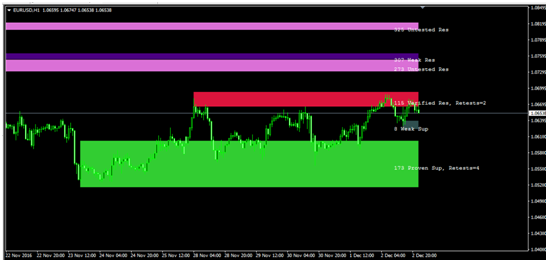
      now look how is this indicator working:

      • is ploting dynamic zones:
        0_1480901473830_upload-d91db741-5fa9-44d9-999b-25aabe806f4f

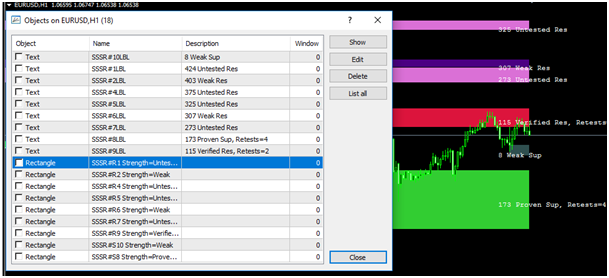
      • these zones are not from buffers, but from objects, so look how they are named:
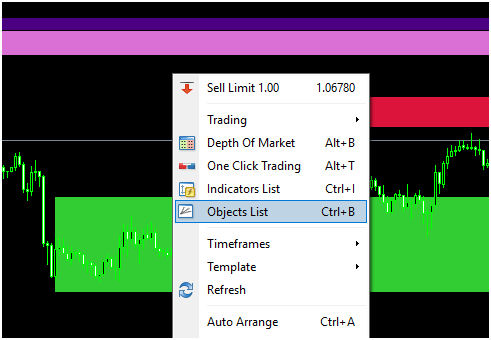
        0_1480901492680_upload-8f5e1c88-125c-4c83-9fc2-d712fc9db53a
        0_1480901502621_upload-8a3bd0be-895e-4175-bc71-84429201ffd3

      See, Rectangle type with name begins as "SSSR" and than some incrementation with "R" or "S" and next info like "Weak", "Proven" ...

      Our strategy can be (you can create another):

      • when candle 1 closed inside zone, we leave EA waiting for next conditions
      • when price go outside (next candle 1 closed outside) zone Up, EA open Buy, when outside zone Dn, EA open Sell
      • zone width must be at least 1xATR
      • SL and TP is some multiplicator from ATR indicator
      • Lot size is risk percento from balance depending on SL

      First we need 2 blocks which are selecting objects (rectangles) based on criteria:
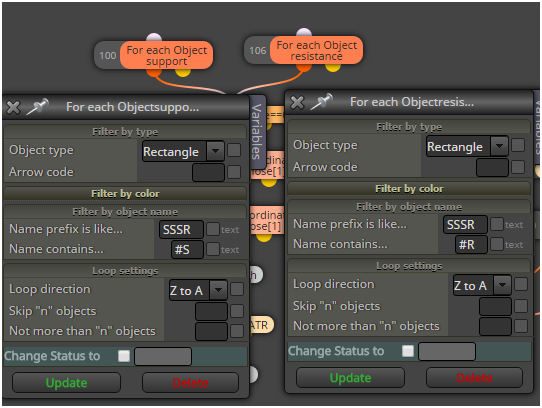
      0_1480901521844_upload-480dd9bb-5a08-49e8-bae4-620242c4ad7a

      next is switch which control if was price inside rectangle before and if EA is waiting for trade

      after this are blocks which are working with selected rectangles
      these blocks make some comparison with candle price and variable blocks save price from selected object into variables priceUp and price Dn for next comparison:
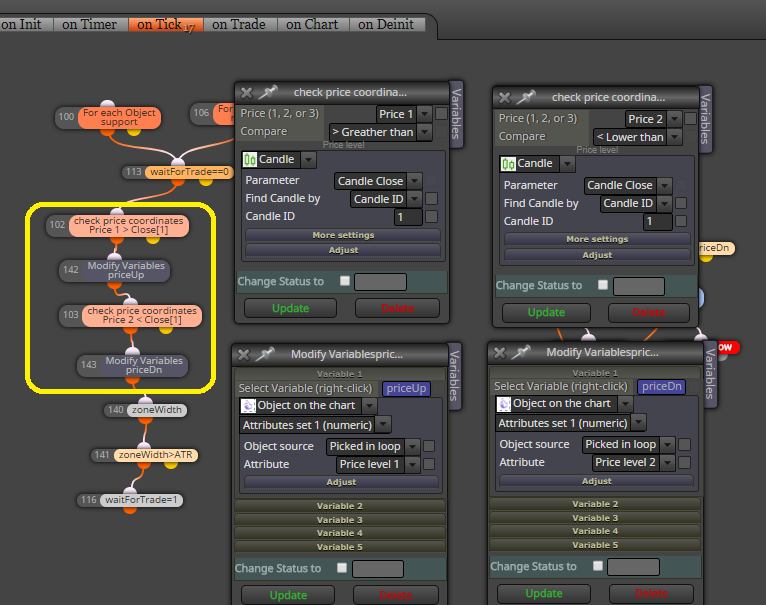
      0_1505222022517_upload-55cb6bd9-a686-4e03-80bb-5d4595c9c909

      here are all blocks together needed for this strategy:
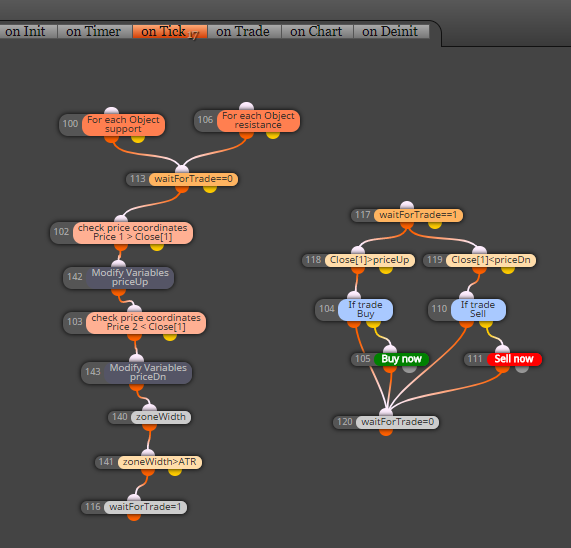
      0_1505222149118_upload-1424f53a-93af-4eb2-bc27-b3f9297fbe0b

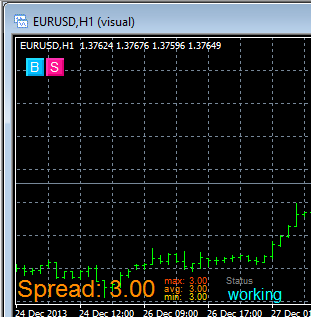
      and this is result:
      0_1480901570649_upload-5b2a177c-a457-4960-973a-e402f5aefd4a

      note: this is not profitable EA and is not for your real account, this tutorial shows only way, how to work with object from some indicators

      note:

      • with this way you can working with any object on the chart, also with own objects placed manually
      • better if you give them name in chart and for selecting object you use block: "Select Object by Name"
      • or you can read or compare values from objects also with other blocks:
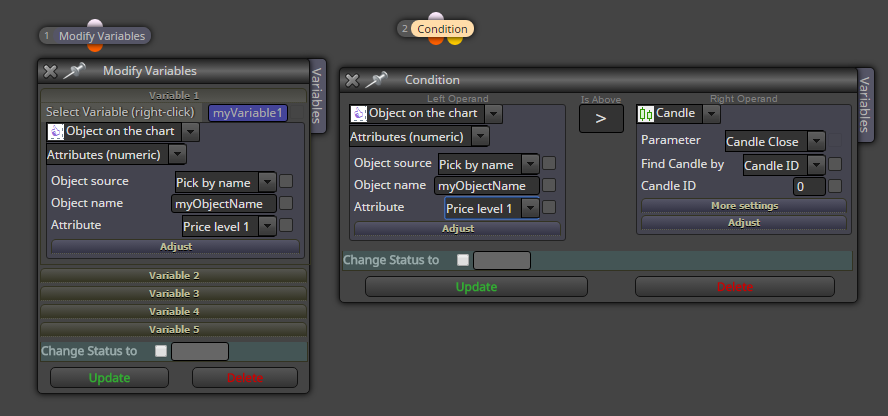
        0_1480902441202_upload-9f38d8b7-5ba0-4fd2-a9f5-c70ea3ba1fff

      that is all ...
      posted in Tutorials by Users
      M
      miro1360
    • Tutorial 01 - EMA cross, part 1 [beginners]

      Hi, I decided to share few tutorials, how to work with fxDreema.

      All what I share is my style of creating EAs in fxDreema. If you are newbie, you can learn something here.

      I start step by step, from beginners to advanced tutorials. I am not best in teaching somebody, also my english is not oxford, but I created a lot of EAs.

      I share link with fully working EA where you find a lot of comments. You can work in this link, or better, you can generate mql code and import it into your new project to work with.
      In next tutorials I will not commented all things, only news, or what I decided as important.
      For next questions you can ask here in forum.

      First tutorial is, how to create easiest EA, when 2 moving averages crosses, in this cross we open trade in counter-direction of cross. This tutorial is splitted into more parts, because I will show you how to make this "nonProfitable" strategy into human control to be potential profitable.

      Click here for first part and enjoy:
      https://fxdreema.com/shared/UOM1aUO5b

      posted in Tutorials by Users
      M
      miro1360
    • example: Trendline EA

      Here I show you how to work with trendline.

      Use this example only with Demo account and learn perfectly how it is working. I am not responsible for your money losses.

      https://fxdreema.com/shared/Q13po8uvc

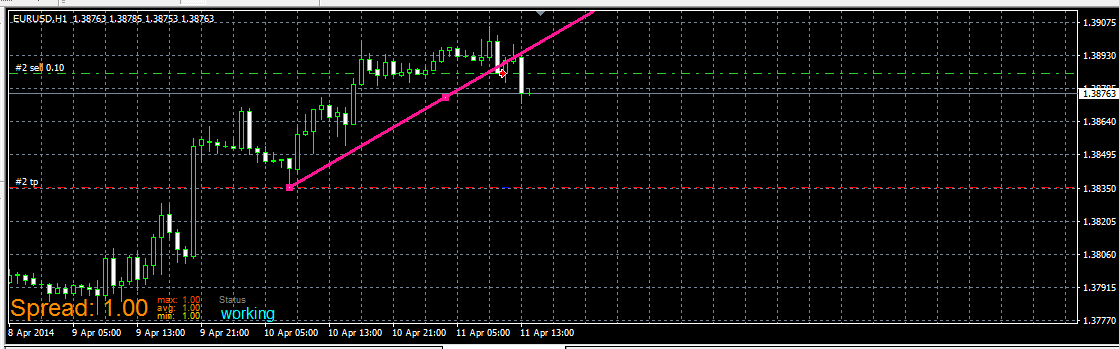
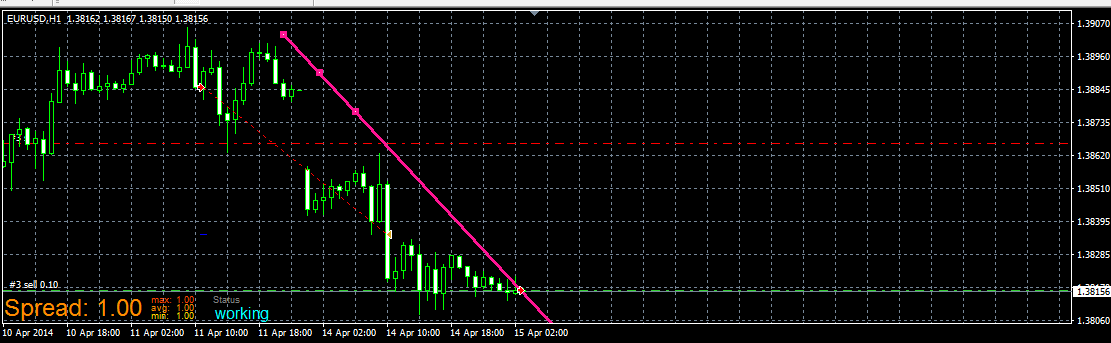
      0_1481684941738_upload-b418ddb3-8414-4517-abc8-782864bb7cce

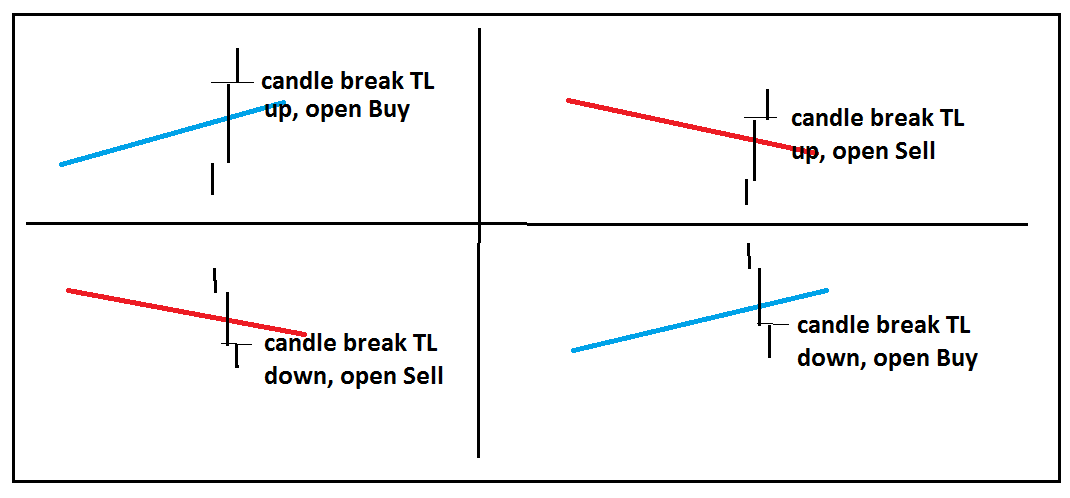
      In example I will open trade on 4 possible situations:

      0_1481685366184_upload-1ba35a43-edf3-4792-87c3-c1646184da9d

      you need create trendlines manually (for this example, but you can do this also automatically with EA using buttons, check my previous tutorial how to work with buttons)

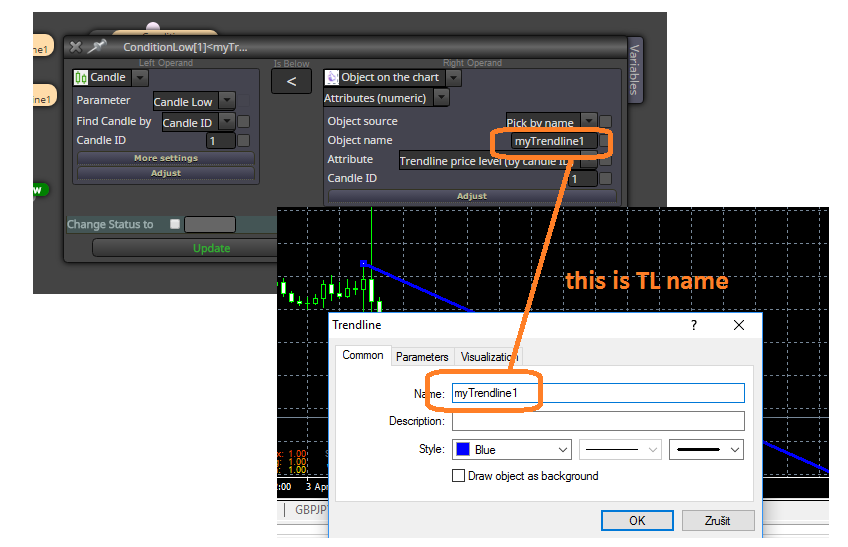
      in EA give name for this trendline in condition, and also the same name in chart for your trendline:
      0_1481685543788_upload-6aec5fdd-dace-4fc4-bfb0-2ad3e72be6ab

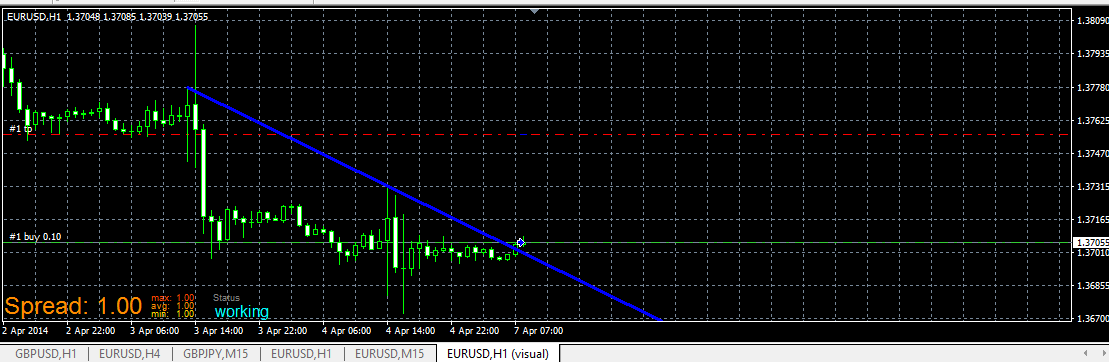
      and this is live example:
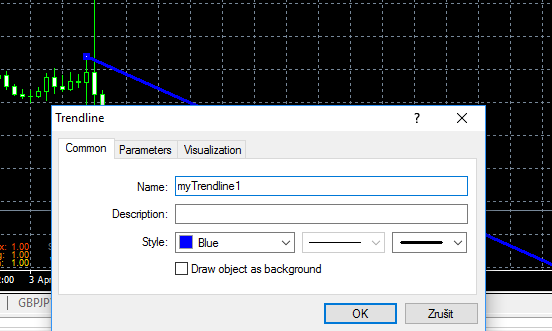
      dont forget, right name for trendline in chart:
      0_1481685600785_upload-5e8f0de4-add5-4cf6-921b-7ba34b9eabf4
      trade when price break your TL from bellow above (buy based on conditions for myTrendline1):
      0_1481685656757_upload-de4cec55-4cb7-40d2-b4b4-057937f36a97

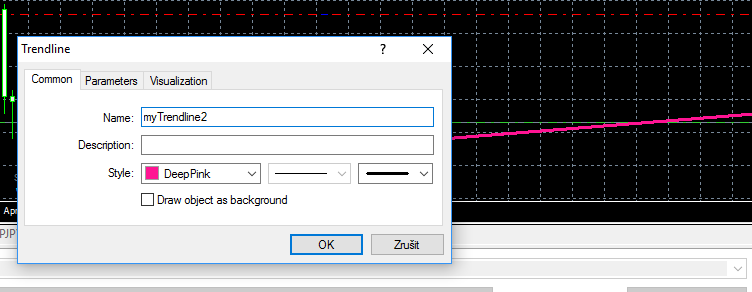
      or Sell for myTrendline2:
      0_1481685691776_upload-3b4839e2-b41b-488b-af22-7cb55b04067e

      0_1481685707414_upload-d8a12c8d-09a1-4d14-9c1d-4604bac56e2c

      and when you place myTrendline2 (for Sell trade) above price, you wait for Sell when it break it from bellow, like this:
      0_1481685762279_upload-ca8e87d3-3de4-494d-b30c-bd45ceed18e1

      you can improve this example by other things, like delete TL after trade is opened (to prevent open another trades when your first is closed) or other things ...

      have a fun πŸ™‚

      posted in Tutorials by Users
      M
      miro1360
    • Tutorial Loop [advanced?] - find and save specific value from indicator history

      fast tutorial how to find specific value in indicator history
      my tip is, use Loop block

      original project: 0_1488923868468_tutorial_loop.mq4
      link: https://fxdreema.com/shared/CS0MvwQSc

      here was question, how to find atr max/min values in specific period
      https://fxdreema.com/forum/topic/4507/indicator-average-value-ichimoku
      so we will find atr max and min and save it into variables for further calculation

      1. create few inputs:
        0_1488911315767_upload-93c69050-e4b9-41b1-ada7-cc5cfdbcc65b
        and variables:
        0_1488911327196_upload-468f822c-41b3-4e63-aaac-aa072a8deb8c
        values are saved into variables atrMax and atrMin
        variable atrNew is needed for temporary saved atr value and variable incr is needed for incrementation candle ID
        input lookBack is period where are you looking for values min max and atrPeriod is period of atr πŸ˜„

      2. next create this block connections:
        0_1488923973125_upload-b0c2b550-ecff-4819-b75d-44f1864ffc45
        firstly you need null variables before loop start, atrMax is 0 but atrMin is "nulled" into high value because for further comparison

      block Loop have in parameter lookBack period - it is, how many times is this loop repeated
      0_1488924017571_upload-15107ba4-1f93-46a4-8672-18c2f4500e14

      next is save atr value from candle ID (variable incr) into variable atrNew:
      0_1488924125470_upload-293d7c93-ce8a-40dc-8faa-95a583a6f5a2

      block Condition for comparing if atrNew is > as atrMax:
      0_1488924186034_upload-1615e023-e577-4246-a061-700c99bb994c

      if that is true, save atrNew into atrMax (atrMax=atrNew)
      0_1488911784597_upload-3fa6f149-d5e2-4016-bf80-26a907d3285a

      the same logic is for atrMin with slightly change in Condition:
      0_1488911834504_upload-2805c643-eecf-4c99-913e-8b66d1e9a935

      1. after that atrMax and atrMin are saved and if loop find on lookBack period new atr which is higher/lower as previous, it is saved ... in that case dont forget for candle ID incrementation which is done with incr variable in next block:
        0_1488924252866_upload-17035187-a9ba-4c69-a60e-b7e9582d9581

      2. with Comment check if it is working:
        0_1488924291054_upload-d54fdb57-3817-4ed7-8aa8-f0f4c4e580f9

      see, it is working:
      0_1488912065988_upload-2e6ba5ca-0b76-4488-83d7-89f4411edff7

      ...
      the same logic you can use for moving average, RSI, stochastic, macd, custom indicator and all others

      πŸ˜‰

      posted in Tutorials by Users
      M
      miro1360
    • example: Save variables into file and read them back [advanced]

      important note:
      ... be sure that each EA must have own variables file (1 EA >> 1 variables file), otherwise there will be a big fight between EAs πŸ˜„ .... 1.EA>>varSave1.txt ... 2.EA>>varSave2.txt ....
      Sometimes we deal with situation, when EA have few critical variables and MT4 terminal must be restarted or was restarted by incident, these variables are no longer available and it can cause problems.
      Values from history trades can be obtained from trades history, but sometimes can be calculation very complicated. For this situation exist another way how to avoid loss of variables. They can be stored into text file with every variable change. For this situation I prepared small example how to do it.

      Example EA have two buttons. Try with tester.
      https://fxdreema.com/shared/HtX9lP51c
      After click on the button trade is opened (buy or sell). Here is small management with lots. When EA is inserted into chart, variable "varLotsBuy" get value from input parameter initLots1. After button click first trade (buy) is opened with "varLotsBuy". If this trade is closed with SL, variable "varLotsBuy" get value multiplied by input parameter "Lots1Multiplier". After new button click, next trade is opened with new value from variable "varLotsBuy". When trade is closed with TP, variable "varLotsBuy" is reseted from first value (initLots1).

      1. Summary: initLots1=0.1, Lots1Multiplier=1.6
      2. Buy: Lots=0.1, closed by SL
      3. Buy: Lots=0.1*1.6=0.16, closed by SL
      4. Buy: Lots=0.16*1.6=0.25, closed by TP
      5. Buy: Lots=0.1

      Example EA in chart:
      0_1506722412649_upload-eef0b83c-d92b-446f-b429-9abbc47683bc

      EA is using few input parameters:
      0_1506722484698_upload-6e5c0fd2-25b5-4241-92cc-331a2e1a02e5

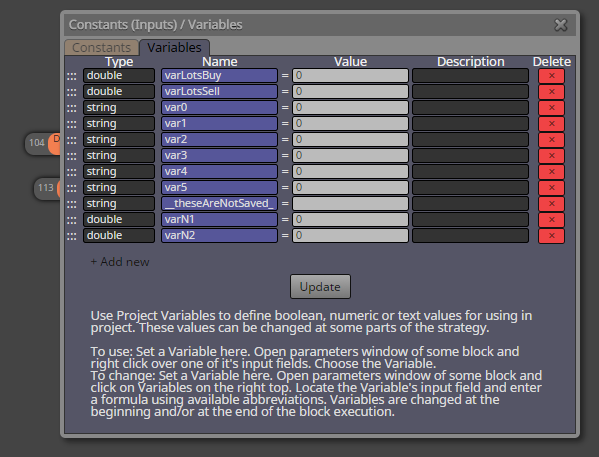
      and few variables: (used are only varLotsBuy and varLotsSell, next variables are only as example)
      0_1506722509992_upload-99db7fe3-ffe9-4267-b01e-01e3a30d99ed

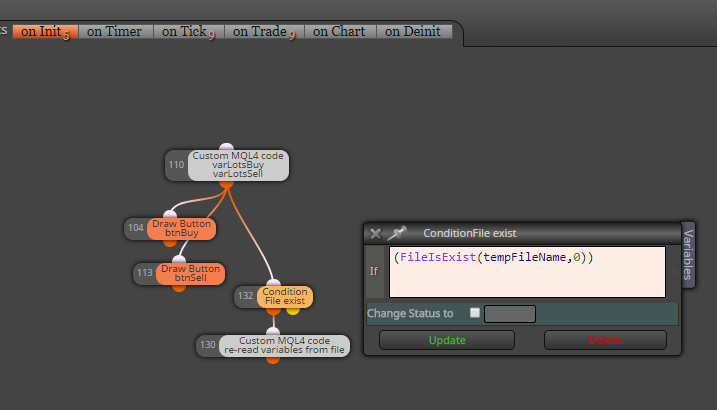
      on Init section draw two buttons and with Condition block (File exist) it check existence of "file with variables", if this file does not exist, EA continue with normal start (with nulled variables), but if file exist, custom code read and initialize variables from this file:
      0_1506722696116_upload-d207c06d-c088-4806-9793-b802c390d3a5

      this is how code looks like:
      0_1506722725210_upload-af7242e9-c719-4e80-a38f-229a9b98bcd2
      strArr[20] is simple temporary array where values are readed from file, each line is one variable (size of array 20 can be increased to any higher size, depends on how much variables you need, it can by much more higher as count of variables, there is no strict rule)
      at bottom of code are variables one after another, in my case they are:
      varLotsBuy = (double)strArr[0];
      varLotsSell = (double)strArr[1];
      var0 = strArr[2];
      var1 = strArr[3];
      var2 = strArr[4];
      var3 = strArr[5];
      var4 = strArr[6];
      var5 = strArr[7];
      important are order and type of variables (order must be same as in file-write code)

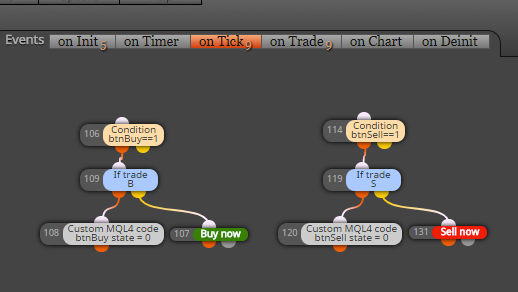
      on Tick section just open trades after button click:
      0_1506723117024_upload-6475960e-08e9-4340-b31e-ba7d7003bb9f

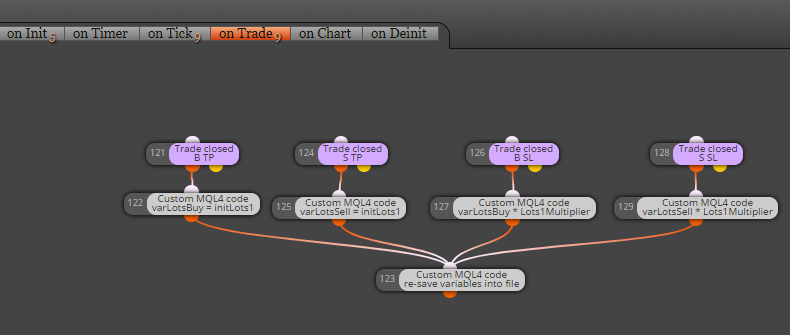
      and in on Trade section is calculation where variables are calculated/changed and re-saved into file:
      (this saving into file can be done everywhere you need, in on Tick section, on Timer, on Chart ...)
      0_1506723172046_upload-50cdb367-bc34-415a-9a0c-ff151cb593f3
      and this how code for save into file looks like:
      0_1506723258821_upload-944a12fd-7849-40c6-8fb4-15f696b3cd13
      you see, pretty easy, nothing complicated .. variables are writed one after another with FileWrite function into new lines in file ... (once again, order of values in file is important, it must be compatible with file-read code)

      File with variables is saved into MQL folder:
      0_1506723422647_upload-1d9bad30-b0b1-43ee-9bab-e414cbefedfb
      in case of tester it is file: tester\files\yourFileName.txt
      in case of normal EA in chart: MQL4\files\yourFileName.txt

      Note, that this file can be opened and edited also manually:
      0_1506723663570_upload-224652b6-5c75-4523-8320-ba33c1ba01bf

      And when you need full reset of variables, before you place EA into chart, delete this file (or create input parameter for delete function, function for this is simple:
      FileDelete(fileName,0);

      I hope my explanation was not very complicated ... have a fun ...

      Cheers ...

      posted in Tutorials by Users
      M
      miro1360
    • RE: Help with MQL block and variables please

      @alphaomega said in Help with MQL block and variables please:

      @tipsywisdom Lol... or maybe he got himself in trouble with that magic and the FBI is looking for him... There are others here that is also wizz kids... Like @miro1360 but he seldom writes anything these days

      This kid comes here from time to time and watches the creativity of other people πŸ˜‰

      posted in Questions & Answers
      M
      miro1360
    • DropDown list for inputs [advanced]

      https://fxdreema.com/forum/topic/5084/is-it-possible-to-have-a-dropdown-list-for-inputs/10

      posted in Tutorials by Users
      M
      miro1360
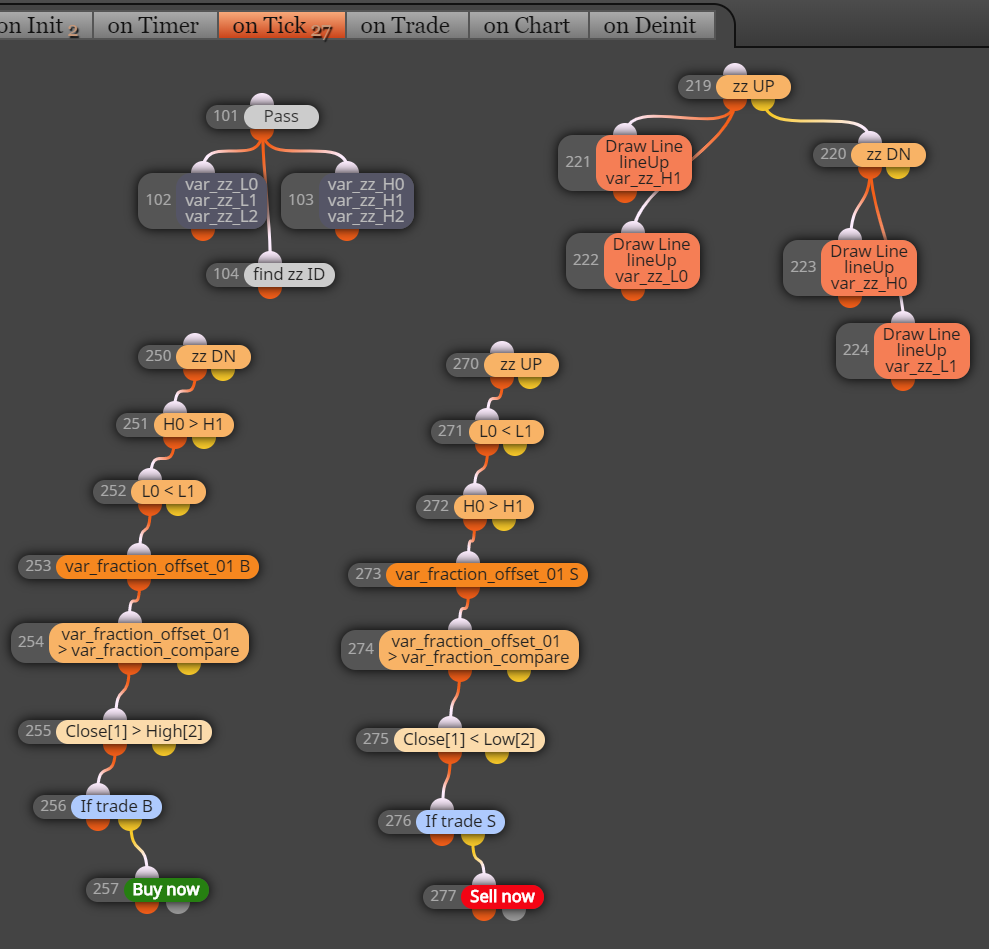
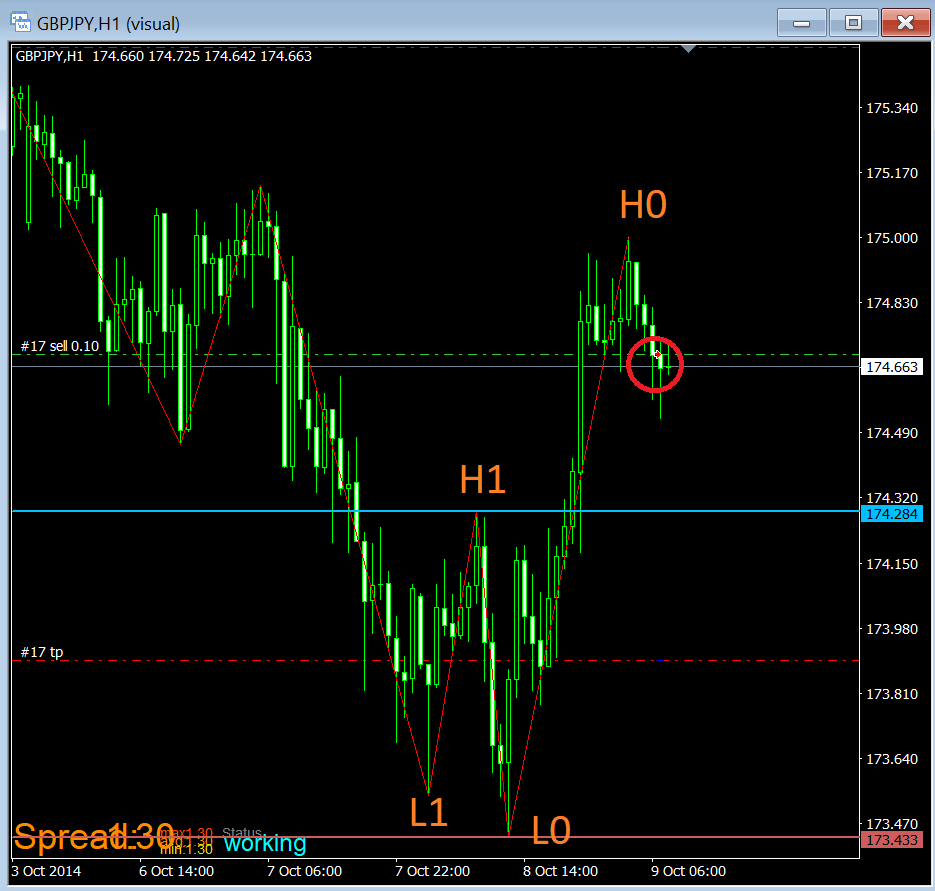
    • RE: How to use ZigZag [advanced]

      because you messed up it completely πŸ˜„ ... I told many times, and I repeat myself once again and again: zigzag is not simple for beginners (or not coders)
      ... and I'm banging my head on the table, why the hell I got this idea to create the zigzag thread, because instead of explaining how the zigzag works I do the whole project for people from scratch πŸ˜„ ...

      https://fxdreema.com/shared/8Xeio059c

      0_1557938196119_5c666c1f-015f-4891-895b-da4b30b5b849-image.png

      0_1557939136938_fb49a3ff-595a-466f-b9d9-14931961931d-image.png

      0_1557939387072_1f775281-1171-498b-ba1b-82618a610005-image.png

      Anyway, this is my last reply for this ZigZag thread. Everything was covered here into details with many examples ... If you does not understand zigzag, read it once again, and once again. Notice also how important are block IDs - order. If you failed, give a break for zigzag and do anything other. Come back after a few days and read everything again and give a new try.

      posted in Tutorials by Users
      M
      miro1360
    • RE: How can I round a number?

      You can use the trick with "int" conversion, but then put the variable in the Text(code input) option.
      Text (code input) option must be selected.
      0_1574909436625_28c9524b-9a48-475c-8f68-1482363552f8-image.png

      posted in Questions & Answers
      M
      miro1360
    • Tutorial 02 - EMA cross, part 2 [beginners]

      In tutorial 01 I showed how to create easiest counter cross EA, in this tutorial you will see how to add inputs into EA with fxdreema.

      Click on this link with EA for more details:
      https://fxdreema.com/shared/G8goTenZb

      When you will directly import that EA without creating block after block, do this:

      1. generate mql code and save it somewhere:
        0_1480122176119_upload-0a09ca4d-c0c2-408b-89a4-f56362be3375

      2. import this generated file into projects:
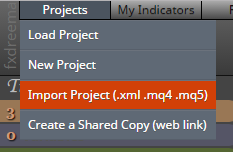
        0_1480122237797_upload-5ecb5fca-bf4c-421b-b173-edd748e04ccf

      Now is EA imported in projects and you can start work with them.

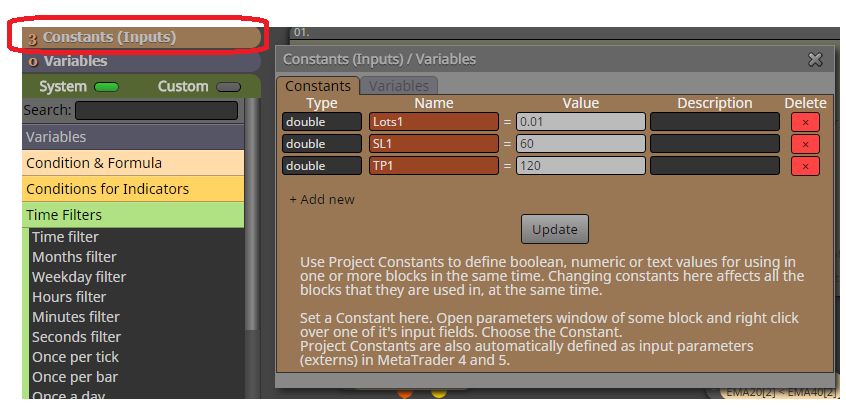
      See step 1. (description in EA). where I am talking about constants, constants in fxdreema:
      0_1480122525662_upload-04b307ad-aa5a-4ac8-871d-2da8f2387387

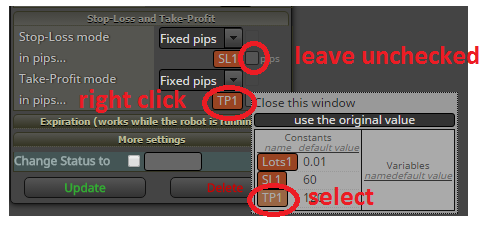
      For adding constant into block parameter, do this with mouse right-click in field where you will add constant and select this constant. Now is this constant as Input parameter. But when you use constant as input parameter, leave input check-box unchecked:
      0_1480122748059_upload-ba434f1b-163f-4c38-b723-07726fce25da

      Why to use constants in fxdreema instead input check box? Because you can add the same constant into more blocks.

      You have successfully created input parameters for EA. Values are changeable in tester.

      Hope it was fast and clear.

      Next tutorial will be about buttons for this EA.

      posted in Tutorials by Users
      M
      miro1360

    Latest posts made by miro1360

    • RE: Help with MQL block and variables please

      @alphaomega said in Help with MQL block and variables please:

      @tipsywisdom Lol... or maybe he got himself in trouble with that magic and the FBI is looking for him... There are others here that is also wizz kids... Like @miro1360 but he seldom writes anything these days

      This kid comes here from time to time and watches the creativity of other people πŸ˜‰

      posted in Questions & Answers
      M
      miro1360
    • RE: field Comment to Sell now block

      It is not possible with integrated martingale systems in Buy block. You can do it only with a custom martingale system (using a combination of variables, blocks for checking trades count, creating a final variable for the comment in Buy block, ...)

      posted in Questions & Answers
      M
      miro1360
    • RE: Tutorial 01 - EMA cross, part 1 [beginners]

      It is called "counter trend trading" - in other words "selling tops, buying bottoms"

      posted in Tutorials by Users
      M
      miro1360
    • RE: Draw Line

      @l-andorrΓ 
      Don't worry, I am still here and I watch people to learn, to come, to try and give up and leave πŸ™‚

      posted in Questions & Answers
      M
      miro1360
    • RE: Tutorial 01 - EMA cross, part 1 [beginners]

      @ferdinand-0
      Hi, it depends on your trading style, some people buy when trends started, some sell tops πŸ˜„ Both is good if it is timed correctly, timing is crucial. As you move forward, you will understand it.

      posted in Tutorials by Users
      M
      miro1360
    • RE: Indicator inside a sub window

      Try to find a moving average over CCI indicator.
      https://www.mql5.com/en/market/product/54067?source=Unknown

      posted in Questions & Answers
      M
      miro1360
    • RE: How can I make the new open trade be open after 80 seconds from teh last closed trade?

      I can work faster with custom code blocks, you can follow the logic and easily turn it into blocks πŸ™‚
      Note: onTimer section is not working with tester

      posted in Questions & Answers
      M
      miro1360
    • RE: How can I make the new open trade be open after 80 seconds from teh last closed trade?

      here you go:
      https://fxdreema.com/shared/oRBYGzxCd

      posted in Questions & Answers
      M
      miro1360
    • RE: How can I make the new open trade be open after 80 seconds from teh last closed trade?

      Use onTimer section and set the interval for 1 second. Add a variable and increment it in this section (varCounter = varCounter + 1), and compare the result with the value 85. If it goes over 85, "allow opening" a new trade depending on another conditions (or open one immediately). By "allow opening" I mean set another variable for true (like varOpen = true). When a trade is opened, reset all variables (varCounter = 0, varOpen = false, etc.).
      Take an inspiration from this thread and my reply:
      https://fxdreema.com/forum/topic/11979/ea-operated-after-3min-from-candle-formation-at-5-min/9

      posted in Questions & Answers
      M
      miro1360
    • RE: EA operated after 3min from candle formation at 5 min

      https://fxdreema.com/shared/lNTv8J0Db

      posted in Questions & Answers
      M
      miro1360