fxDreema

    • Register
    • Login
    • Search
    • Back to the main page
    • Categories
    • Recent
    • Tags
    • Popular
    • Search
    1. Home
    2. miro1360
    3. Best
    M
    • Profile
    • Following 0
    • Followers 257
    • Topics 27
    • Posts 1611
    • Best 192
    • Controversial 5
    • Groups 0

    Best posts made by miro1360

    • Tutorial 07 - Read prices from indicator objects

      We are going read values from Objects on the chart which are controlled by indicator, not values from buffers, that means, we dont need indicator in My Indicators because we are not going work with indicator directly.
      Indicator must be inserted into chart manually (into same chart with EA).

      here is indicator (note, is renamed, you can rename it as you wish)
      0_1480901745242_Shved Supply and Demand (e600) length.ex4

      and here is shared link to this strategy:
      https://fxdreema.com/shared/JyxzKfdwd

      now look how is this indicator working:

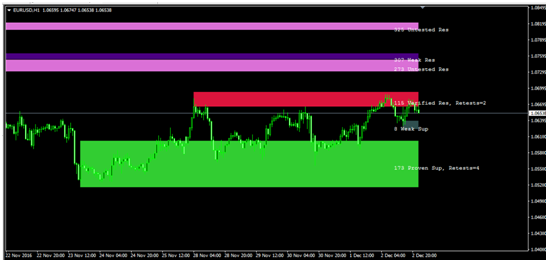
      • is ploting dynamic zones:
        0_1480901473830_upload-d91db741-5fa9-44d9-999b-25aabe806f4f

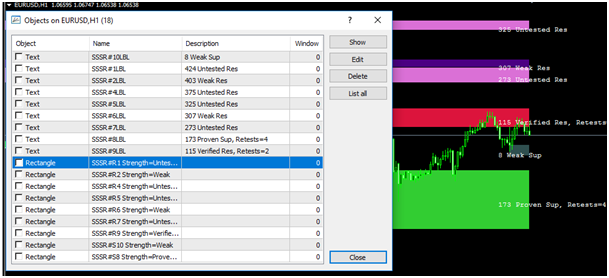
      • these zones are not from buffers, but from objects, so look how they are named:
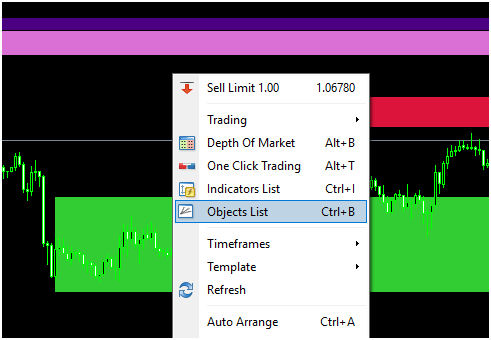
        0_1480901492680_upload-8f5e1c88-125c-4c83-9fc2-d712fc9db53a
        0_1480901502621_upload-8a3bd0be-895e-4175-bc71-84429201ffd3

      See, Rectangle type with name begins as "SSSR" and than some incrementation with "R" or "S" and next info like "Weak", "Proven" ...

      Our strategy can be (you can create another):

      • when candle 1 closed inside zone, we leave EA waiting for next conditions
      • when price go outside (next candle 1 closed outside) zone Up, EA open Buy, when outside zone Dn, EA open Sell
      • zone width must be at least 1xATR
      • SL and TP is some multiplicator from ATR indicator
      • Lot size is risk percento from balance depending on SL

      First we need 2 blocks which are selecting objects (rectangles) based on criteria:
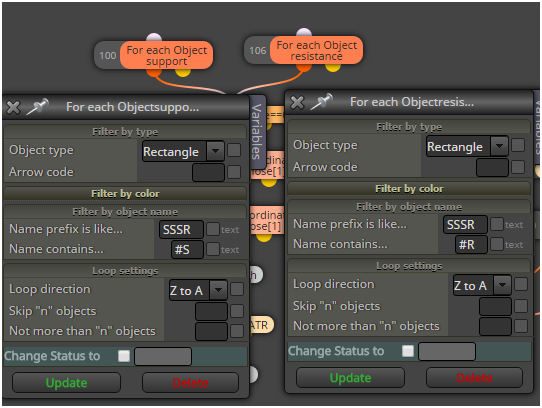
      0_1480901521844_upload-480dd9bb-5a08-49e8-bae4-620242c4ad7a

      next is switch which control if was price inside rectangle before and if EA is waiting for trade

      after this are blocks which are working with selected rectangles
      these blocks make some comparison with candle price and variable blocks save price from selected object into variables priceUp and price Dn for next comparison:
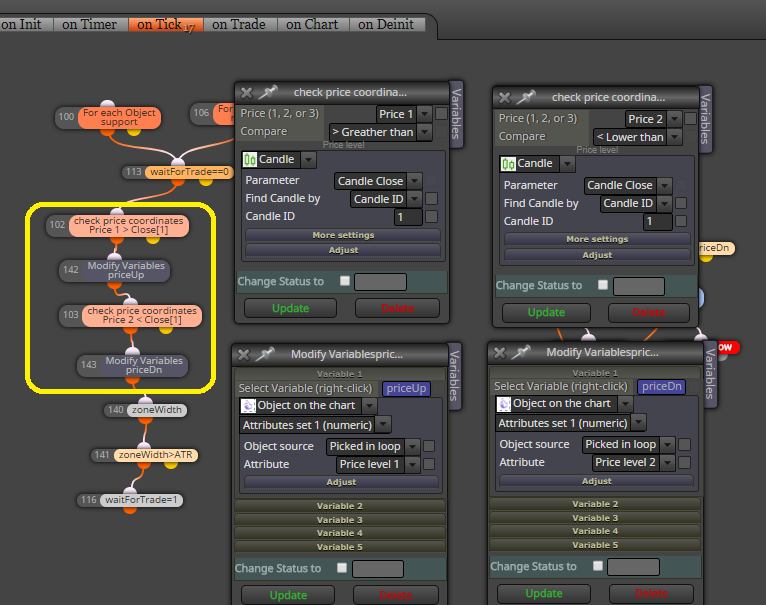
      0_1505222022517_upload-55cb6bd9-a686-4e03-80bb-5d4595c9c909

      here are all blocks together needed for this strategy:
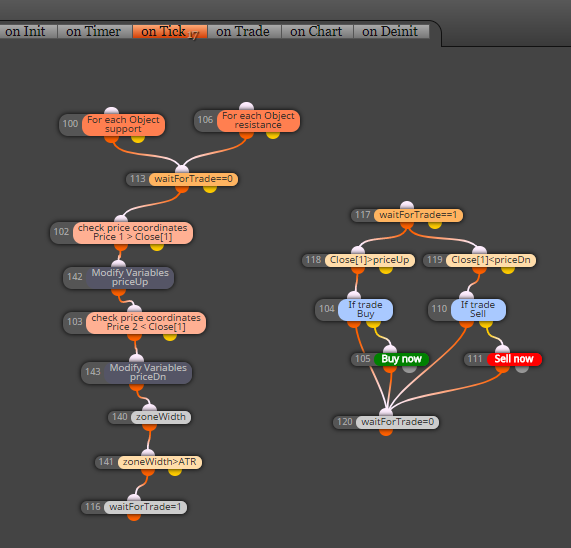
      0_1505222149118_upload-1424f53a-93af-4eb2-bc27-b3f9297fbe0b

      and this is result:
      0_1480901570649_upload-5b2a177c-a457-4960-973a-e402f5aefd4a

      note: this is not profitable EA and is not for your real account, this tutorial shows only way, how to work with object from some indicators

      note:

      • with this way you can working with any object on the chart, also with own objects placed manually
      • better if you give them name in chart and for selecting object you use block: "Select Object by Name"
      • or you can read or compare values from objects also with other blocks:
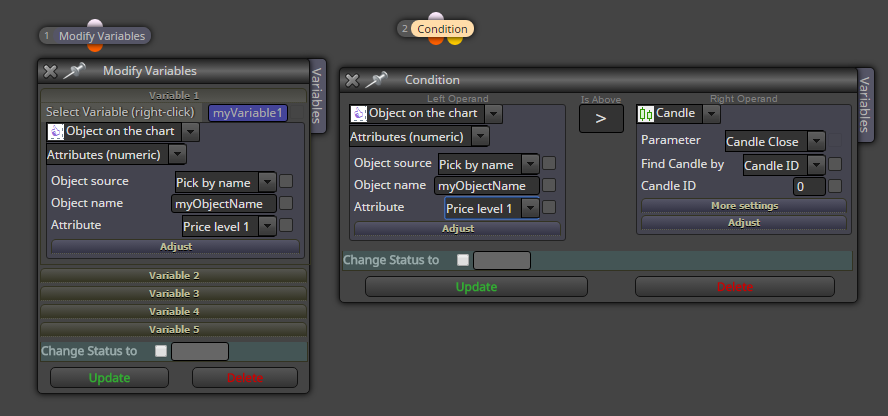
        0_1480902441202_upload-9f38d8b7-5ba0-4fd2-a9f5-c70ea3ba1fff

      that is all ...
      posted in Tutorials by Users
      M
      miro1360
    • Tutorial 01 - EMA cross, part 1 [beginners]

      Hi, I decided to share few tutorials, how to work with fxDreema.

      All what I share is my style of creating EAs in fxDreema. If you are newbie, you can learn something here.

      I start step by step, from beginners to advanced tutorials. I am not best in teaching somebody, also my english is not oxford, but I created a lot of EAs.

      I share link with fully working EA where you find a lot of comments. You can work in this link, or better, you can generate mql code and import it into your new project to work with.
      In next tutorials I will not commented all things, only news, or what I decided as important.
      For next questions you can ask here in forum.

      First tutorial is, how to create easiest EA, when 2 moving averages crosses, in this cross we open trade in counter-direction of cross. This tutorial is splitted into more parts, because I will show you how to make this "nonProfitable" strategy into human control to be potential profitable.

      Click here for first part and enjoy:
      https://fxdreema.com/shared/UOM1aUO5b

      posted in Tutorials by Users
      M
      miro1360
    • example: Trendline EA

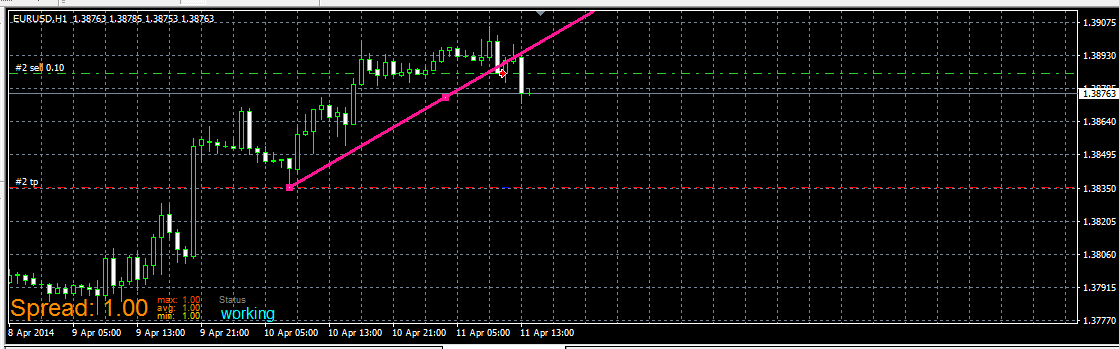
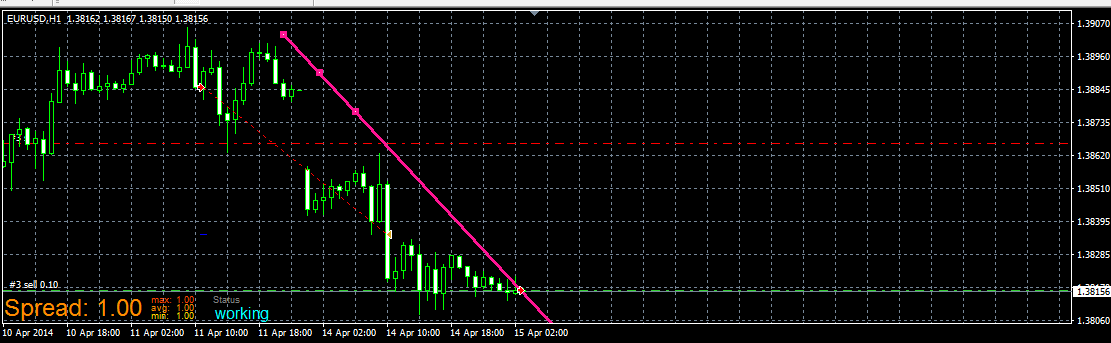
      Here I show you how to work with trendline.

      Use this example only with Demo account and learn perfectly how it is working. I am not responsible for your money losses.

      https://fxdreema.com/shared/Q13po8uvc

      0_1481684941738_upload-b418ddb3-8414-4517-abc8-782864bb7cce

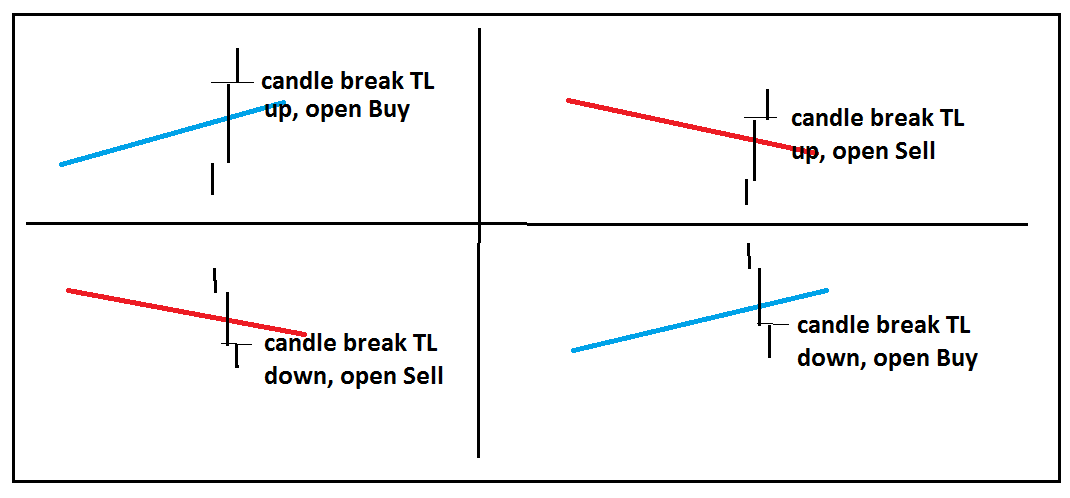
      In example I will open trade on 4 possible situations:

      0_1481685366184_upload-1ba35a43-edf3-4792-87c3-c1646184da9d

      you need create trendlines manually (for this example, but you can do this also automatically with EA using buttons, check my previous tutorial how to work with buttons)

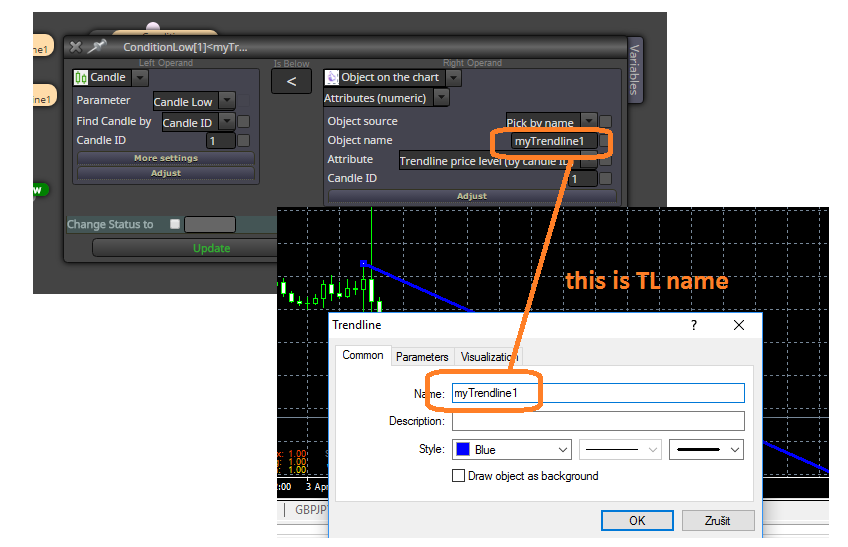
      in EA give name for this trendline in condition, and also the same name in chart for your trendline:
      0_1481685543788_upload-6aec5fdd-dace-4fc4-bfb0-2ad3e72be6ab

      and this is live example:
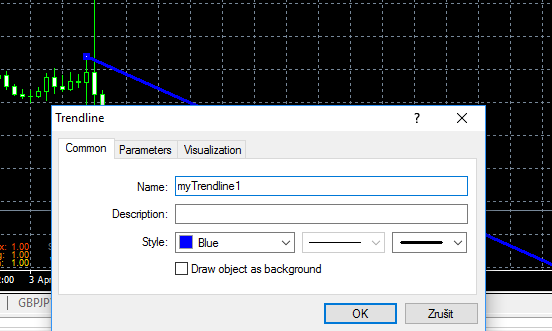
      dont forget, right name for trendline in chart:
      0_1481685600785_upload-5e8f0de4-add5-4cf6-921b-7ba34b9eabf4
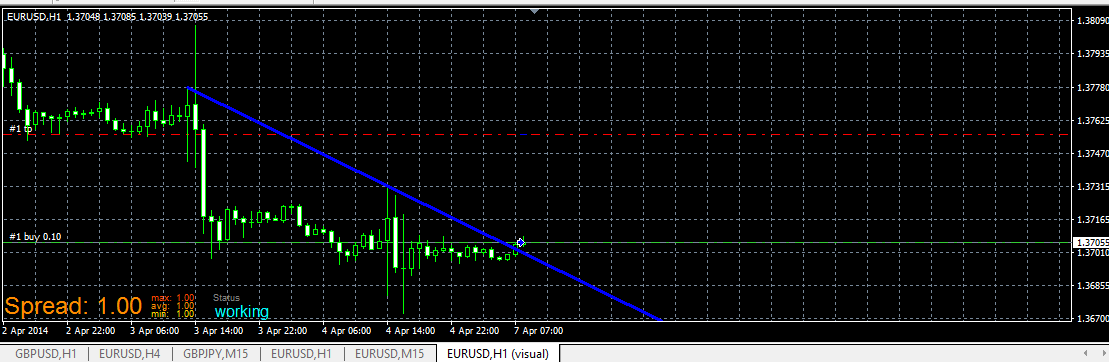
      trade when price break your TL from bellow above (buy based on conditions for myTrendline1):
      0_1481685656757_upload-de4cec55-4cb7-40d2-b4b4-057937f36a97

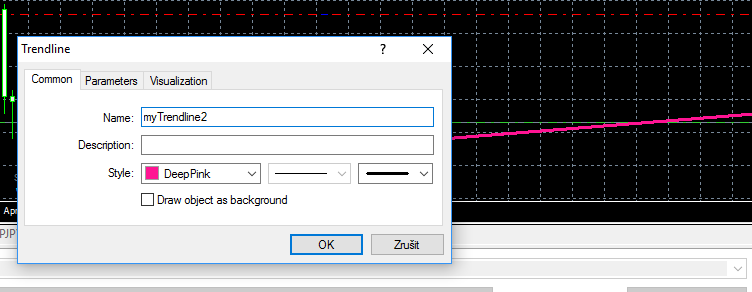
      or Sell for myTrendline2:
      0_1481685691776_upload-3b4839e2-b41b-488b-af22-7cb55b04067e

      0_1481685707414_upload-d8a12c8d-09a1-4d14-9c1d-4604bac56e2c

      and when you place myTrendline2 (for Sell trade) above price, you wait for Sell when it break it from bellow, like this:
      0_1481685762279_upload-ca8e87d3-3de4-494d-b30c-bd45ceed18e1

      you can improve this example by other things, like delete TL after trade is opened (to prevent open another trades when your first is closed) or other things ...

      have a fun 🙂

      posted in Tutorials by Users
      M
      miro1360
    • Tutorial Loop [advanced?] - find and save specific value from indicator history

      fast tutorial how to find specific value in indicator history
      my tip is, use Loop block

      original project: 0_1488923868468_tutorial_loop.mq4
      link: https://fxdreema.com/shared/CS0MvwQSc

      here was question, how to find atr max/min values in specific period
      https://fxdreema.com/forum/topic/4507/indicator-average-value-ichimoku
      so we will find atr max and min and save it into variables for further calculation

      1. create few inputs:
        0_1488911315767_upload-93c69050-e4b9-41b1-ada7-cc5cfdbcc65b
        and variables:
        0_1488911327196_upload-468f822c-41b3-4e63-aaac-aa072a8deb8c
        values are saved into variables atrMax and atrMin
        variable atrNew is needed for temporary saved atr value and variable incr is needed for incrementation candle ID
        input lookBack is period where are you looking for values min max and atrPeriod is period of atr 😄

      2. next create this block connections:
        0_1488923973125_upload-b0c2b550-ecff-4819-b75d-44f1864ffc45
        firstly you need null variables before loop start, atrMax is 0 but atrMin is "nulled" into high value because for further comparison

      block Loop have in parameter lookBack period - it is, how many times is this loop repeated
      0_1488924017571_upload-15107ba4-1f93-46a4-8672-18c2f4500e14

      next is save atr value from candle ID (variable incr) into variable atrNew:
      0_1488924125470_upload-293d7c93-ce8a-40dc-8faa-95a583a6f5a2

      block Condition for comparing if atrNew is > as atrMax:
      0_1488924186034_upload-1615e023-e577-4246-a061-700c99bb994c

      if that is true, save atrNew into atrMax (atrMax=atrNew)
      0_1488911784597_upload-3fa6f149-d5e2-4016-bf80-26a907d3285a

      the same logic is for atrMin with slightly change in Condition:
      0_1488911834504_upload-2805c643-eecf-4c99-913e-8b66d1e9a935

      1. after that atrMax and atrMin are saved and if loop find on lookBack period new atr which is higher/lower as previous, it is saved ... in that case dont forget for candle ID incrementation which is done with incr variable in next block:
        0_1488924252866_upload-17035187-a9ba-4c69-a60e-b7e9582d9581

      2. with Comment check if it is working:
        0_1488924291054_upload-d54fdb57-3817-4ed7-8aa8-f0f4c4e580f9

      see, it is working:
      0_1488912065988_upload-2e6ba5ca-0b76-4488-83d7-89f4411edff7

      ...
      the same logic you can use for moving average, RSI, stochastic, macd, custom indicator and all others

      😉

      posted in Tutorials by Users
      M
      miro1360
    • example: Save variables into file and read them back [advanced]

      important note:
      ... be sure that each EA must have own variables file (1 EA >> 1 variables file), otherwise there will be a big fight between EAs 😄 .... 1.EA>>varSave1.txt ... 2.EA>>varSave2.txt ....
      Sometimes we deal with situation, when EA have few critical variables and MT4 terminal must be restarted or was restarted by incident, these variables are no longer available and it can cause problems.
      Values from history trades can be obtained from trades history, but sometimes can be calculation very complicated. For this situation exist another way how to avoid loss of variables. They can be stored into text file with every variable change. For this situation I prepared small example how to do it.

      Example EA have two buttons. Try with tester.
      https://fxdreema.com/shared/HtX9lP51c
      After click on the button trade is opened (buy or sell). Here is small management with lots. When EA is inserted into chart, variable "varLotsBuy" get value from input parameter initLots1. After button click first trade (buy) is opened with "varLotsBuy". If this trade is closed with SL, variable "varLotsBuy" get value multiplied by input parameter "Lots1Multiplier". After new button click, next trade is opened with new value from variable "varLotsBuy". When trade is closed with TP, variable "varLotsBuy" is reseted from first value (initLots1).

      1. Summary: initLots1=0.1, Lots1Multiplier=1.6
      2. Buy: Lots=0.1, closed by SL
      3. Buy: Lots=0.1*1.6=0.16, closed by SL
      4. Buy: Lots=0.16*1.6=0.25, closed by TP
      5. Buy: Lots=0.1

      Example EA in chart:
      0_1506722412649_upload-eef0b83c-d92b-446f-b429-9abbc47683bc

      EA is using few input parameters:
      0_1506722484698_upload-6e5c0fd2-25b5-4241-92cc-331a2e1a02e5

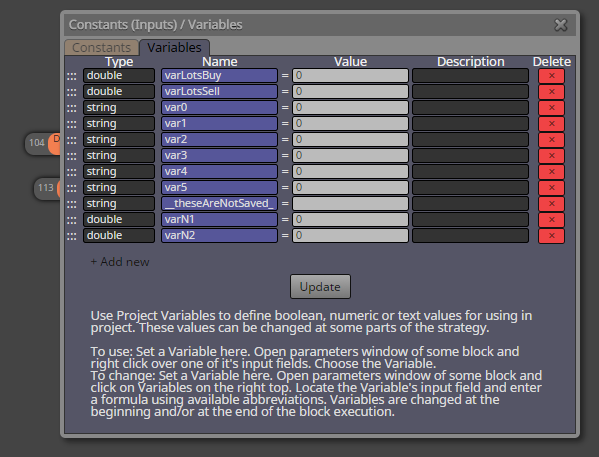
      and few variables: (used are only varLotsBuy and varLotsSell, next variables are only as example)
      0_1506722509992_upload-99db7fe3-ffe9-4267-b01e-01e3a30d99ed

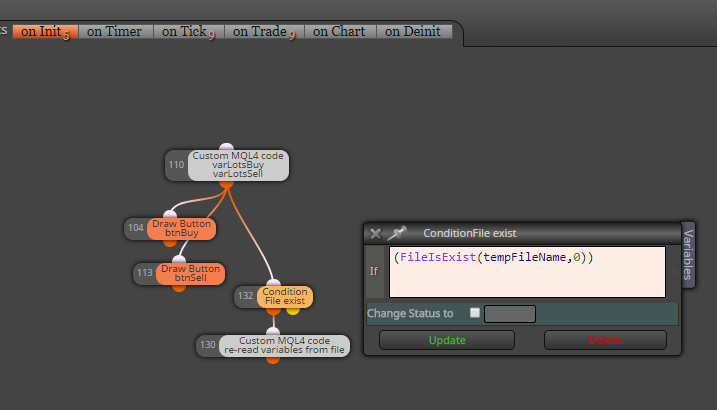
      on Init section draw two buttons and with Condition block (File exist) it check existence of "file with variables", if this file does not exist, EA continue with normal start (with nulled variables), but if file exist, custom code read and initialize variables from this file:
      0_1506722696116_upload-d207c06d-c088-4806-9793-b802c390d3a5

      this is how code looks like:
      0_1506722725210_upload-af7242e9-c719-4e80-a38f-229a9b98bcd2
      strArr[20] is simple temporary array where values are readed from file, each line is one variable (size of array 20 can be increased to any higher size, depends on how much variables you need, it can by much more higher as count of variables, there is no strict rule)
      at bottom of code are variables one after another, in my case they are:
      varLotsBuy = (double)strArr[0];
      varLotsSell = (double)strArr[1];
      var0 = strArr[2];
      var1 = strArr[3];
      var2 = strArr[4];
      var3 = strArr[5];
      var4 = strArr[6];
      var5 = strArr[7];
      important are order and type of variables (order must be same as in file-write code)

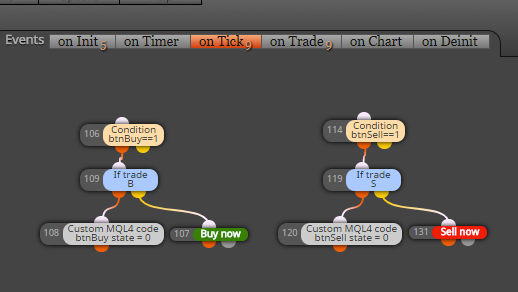
      on Tick section just open trades after button click:
      0_1506723117024_upload-6475960e-08e9-4340-b31e-ba7d7003bb9f

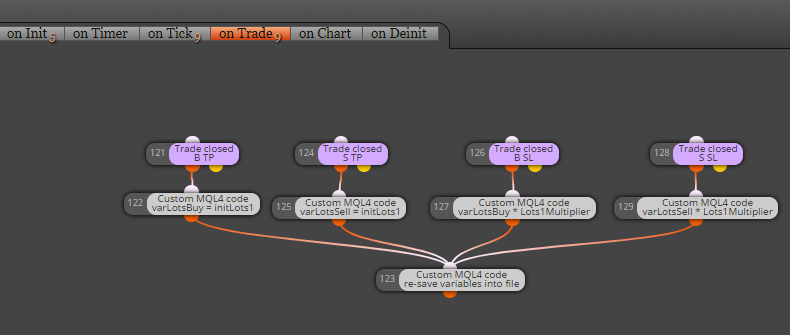
      and in on Trade section is calculation where variables are calculated/changed and re-saved into file:
      (this saving into file can be done everywhere you need, in on Tick section, on Timer, on Chart ...)
      0_1506723172046_upload-50cdb367-bc34-415a-9a0c-ff151cb593f3
      and this how code for save into file looks like:
      0_1506723258821_upload-944a12fd-7849-40c6-8fb4-15f696b3cd13
      you see, pretty easy, nothing complicated .. variables are writed one after another with FileWrite function into new lines in file ... (once again, order of values in file is important, it must be compatible with file-read code)

      File with variables is saved into MQL folder:
      0_1506723422647_upload-1d9bad30-b0b1-43ee-9bab-e414cbefedfb
      in case of tester it is file: tester\files\yourFileName.txt
      in case of normal EA in chart: MQL4\files\yourFileName.txt

      Note, that this file can be opened and edited also manually:
      0_1506723663570_upload-224652b6-5c75-4523-8320-ba33c1ba01bf

      And when you need full reset of variables, before you place EA into chart, delete this file (or create input parameter for delete function, function for this is simple:
      FileDelete(fileName,0);

      I hope my explanation was not very complicated ... have a fun ...

      Cheers ...

      posted in Tutorials by Users
      M
      miro1360
    • RE: Help with MQL block and variables please

      @alphaomega said in Help with MQL block and variables please:

      @tipsywisdom Lol... or maybe he got himself in trouble with that magic and the FBI is looking for him... There are others here that is also wizz kids... Like @miro1360 but he seldom writes anything these days

      This kid comes here from time to time and watches the creativity of other people 😉

      posted in Questions & Answers
      M
      miro1360
    • DropDown list for inputs [advanced]

      https://fxdreema.com/forum/topic/5084/is-it-possible-to-have-a-dropdown-list-for-inputs/10

      posted in Tutorials by Users
      M
      miro1360
    • RE: How to use ZigZag [advanced]

      because you messed up it completely 😄 ... I told many times, and I repeat myself once again and again: zigzag is not simple for beginners (or not coders)
      ... and I'm banging my head on the table, why the hell I got this idea to create the zigzag thread, because instead of explaining how the zigzag works I do the whole project for people from scratch 😄 ...

      https://fxdreema.com/shared/8Xeio059c

      0_1557938196119_5c666c1f-015f-4891-895b-da4b30b5b849-image.png

      0_1557939136938_fb49a3ff-595a-466f-b9d9-14931961931d-image.png

      0_1557939387072_1f775281-1171-498b-ba1b-82618a610005-image.png

      Anyway, this is my last reply for this ZigZag thread. Everything was covered here into details with many examples ... If you does not understand zigzag, read it once again, and once again. Notice also how important are block IDs - order. If you failed, give a break for zigzag and do anything other. Come back after a few days and read everything again and give a new try.

      posted in Tutorials by Users
      M
      miro1360
    • RE: How can I round a number?

      You can use the trick with "int" conversion, but then put the variable in the Text(code input) option.
      Text (code input) option must be selected.
      0_1574909436625_28c9524b-9a48-475c-8f68-1482363552f8-image.png

      posted in Questions & Answers
      M
      miro1360
    • Tutorial 02 - EMA cross, part 2 [beginners]

      In tutorial 01 I showed how to create easiest counter cross EA, in this tutorial you will see how to add inputs into EA with fxdreema.

      Click on this link with EA for more details:
      https://fxdreema.com/shared/G8goTenZb

      When you will directly import that EA without creating block after block, do this:

      1. generate mql code and save it somewhere:
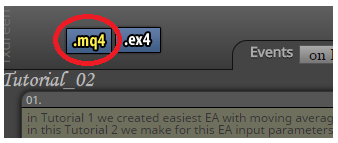
        0_1480122176119_upload-0a09ca4d-c0c2-408b-89a4-f56362be3375

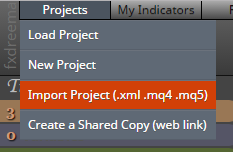
      2. import this generated file into projects:
        0_1480122237797_upload-5ecb5fca-bf4c-421b-b173-edd748e04ccf

      Now is EA imported in projects and you can start work with them.

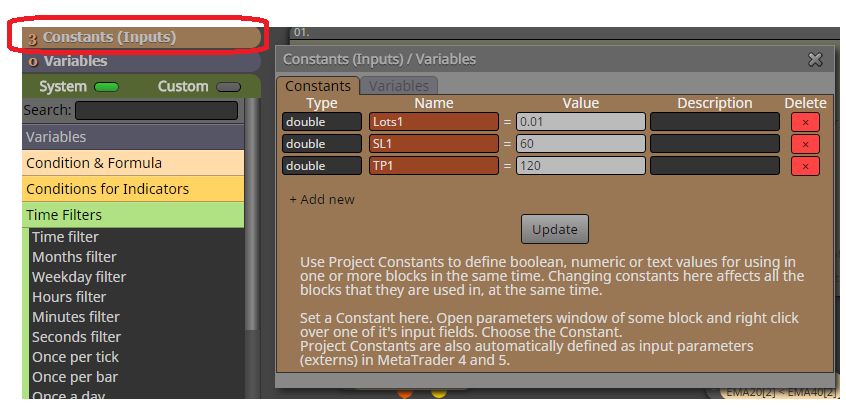
      See step 1. (description in EA). where I am talking about constants, constants in fxdreema:
      0_1480122525662_upload-04b307ad-aa5a-4ac8-871d-2da8f2387387

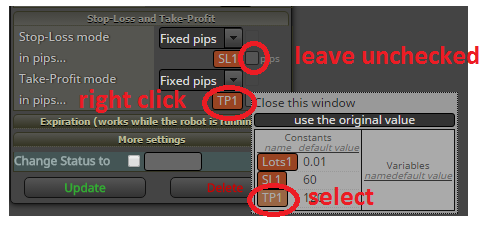
      For adding constant into block parameter, do this with mouse right-click in field where you will add constant and select this constant. Now is this constant as Input parameter. But when you use constant as input parameter, leave input check-box unchecked:
      0_1480122748059_upload-ba434f1b-163f-4c38-b723-07726fce25da

      Why to use constants in fxdreema instead input check box? Because you can add the same constant into more blocks.

      You have successfully created input parameters for EA. Values are changeable in tester.

      Hope it was fast and clear.

      Next tutorial will be about buttons for this EA.

      posted in Tutorials by Users
      M
      miro1360
    • Tutorial 06 - My Indicators in fxDreema

      1.) Import with mq file:

      Here I show you, how to add custom indicator into My Indicators in fxdreema and how to use this indicator in project. You can take any indicator, for this tutorial I created own indicator based on Trader Divergence Index. It are few moving averages over RSI and my own enhancement channel based on Standard Deviation multiplicator over market line (third MA).
      First you need is know, how indicator is working and which values are in buffers.
      For this, place indicator into chart and see:
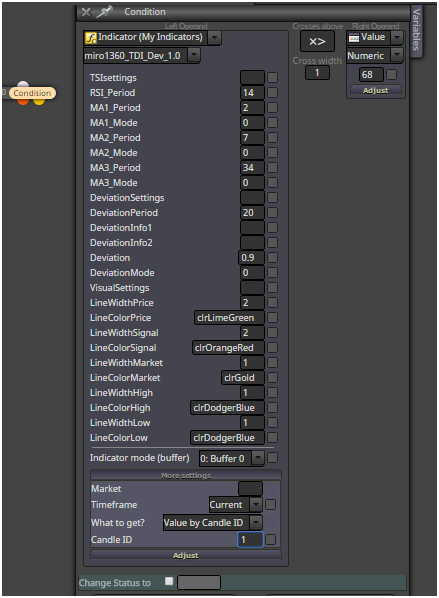
      0_1480900443645_upload-226592c0-2959-45be-95f5-46286df30bc0

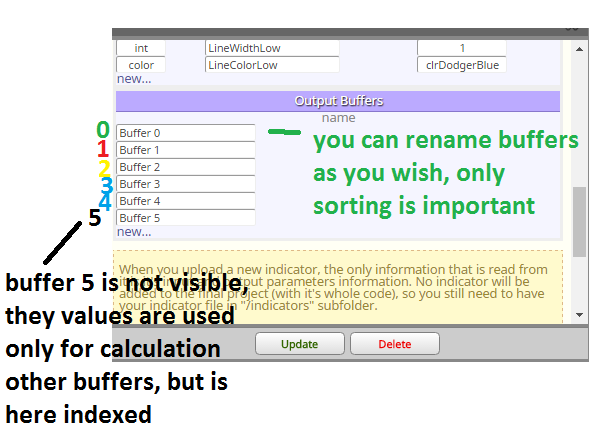
      On that picture observe indicator buffers in settings window how they are numbered (0,1,2,3,4, ...), these buffer indexes are important numbers for you.
      In builder click on My indicators - Add custom indicator - Select, and find your mq file with indicator and ok:
      0_1480900470642_upload-c865ab75-dce0-4d5f-80fc-c68378dc7ce2
      .
      0_1480900482201_upload-43b3af55-84ca-401f-8571-34ca11f4d9e0

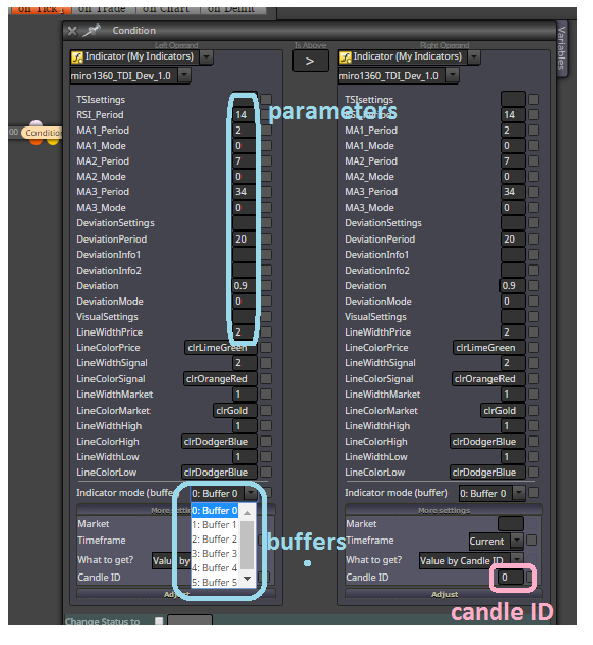
      click update and now you can working with this indicator ... see there buffers, parameters,
      0_1480900516503_upload-f34eaf84-330c-47ef-8908-d5814d0adb35

      and next important: Candle ID ... for this candle ID you can observe from chart what values are in buffers
      for my indicator it are values somewhere from 0 to 100, sometimes >100 or <0
      Candle ID are indexes in buffers and buffers are holding values (for each candle ID is here value), small example:
      Buffer0[0]=50
      Buffer0[1]=52
      Buffer0[2]=51
      etc ... Buffer0[0]=50 means, that Buffer0 have on candle 0 value 50, Buffer0[1]=52 have on candle 1 value 52 ....

      when are there negative candle indexes, like -1,-2,... you can read values from indicators that are ploting values into future (like ichomoku indicator) ... if you will this value, only you need is give negative Candle ID into block where you are working with indicator
      0_1480900561017_upload-010b7aa2-e8a4-4fc5-9a3c-f4d44e1bb0e3

      note, you need compare values from indicator with adequate values (for this indicator, when value from buffer is 60, you can not compare it with value from candle price 1.1200, because how?)

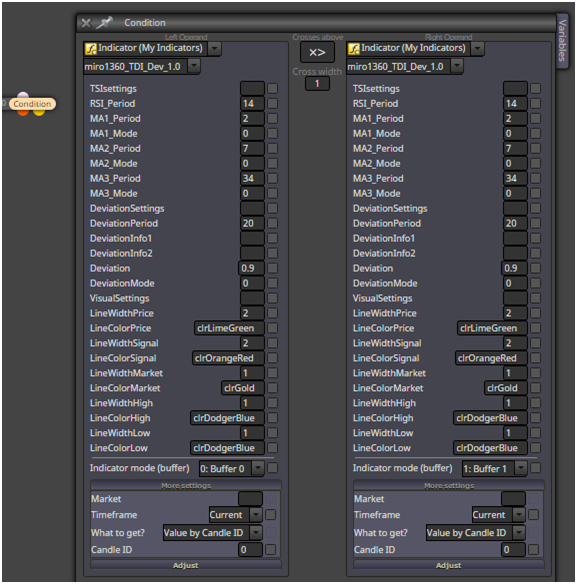
      when you will make cross green line above red line on candle 0 (candle 0 is not closed and it means repainting, but is fresh), this is way:
      0_1480900591536_upload-8dafde90-9ff2-47f0-a463-cb157f20cc6d

      you can take cross also from candle 1 (this is closed candle and is not repaint - repainting this candle depends on indicator, because some indicators repaints all values) ... Candle ID in this case = 1

      or you can make cross with two condition blocks with logic:
      Buffer0[2] < Buffer1[2] AND
      Buffer0[1] > Buffer1[1]

      means Candle ID, in words: when green line on candle 2 is below red line on candle 1 and green line on candle1 is above red line on candle 1 (than is cross up)

      when you will make cross above value, lets say green line crosses UP value 68 (level 68) on closed candle 1, this is how to do:
      0_1480900637724_upload-4fa2913e-8f49-4e9b-b967-3c1baa3002c7

      2.) Import without mq file, with ex file:

      If you dont have indicator mq file and only ex file, import can be done this way:
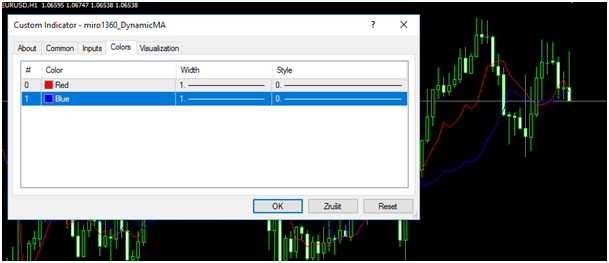
      example is my ex file from indicator miro1360_DynamicMA, look for indicator behavior:
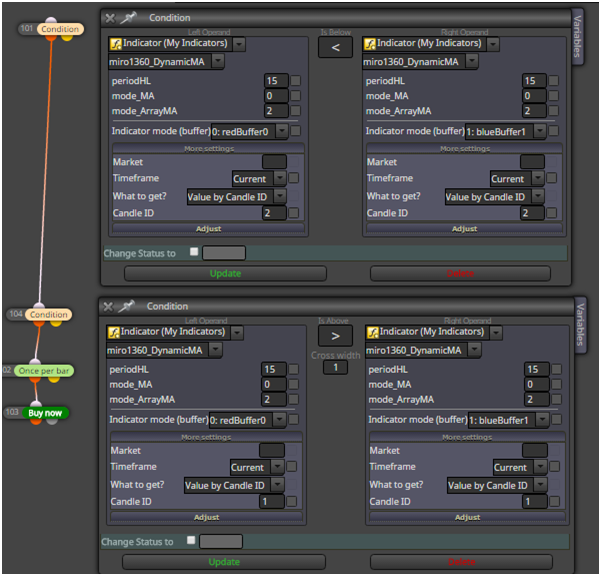
      0_1480900774955_upload-fff2260f-7feb-4ff4-860d-db01ac2e6503

      you see here 2 buffers
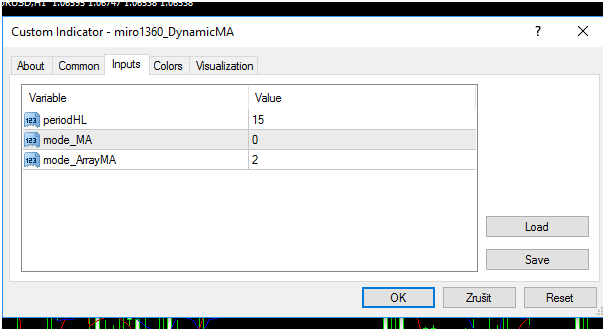
      and also some input parameters:
      0_1480900786653_upload-b1658af0-ed91-4ebb-aa6d-9e121b83f075

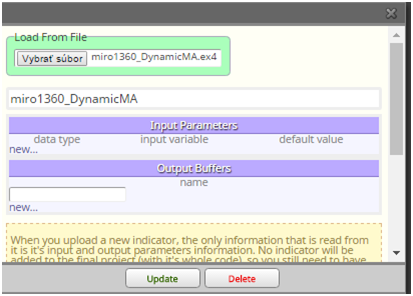
      now go to Builder and find your indicator ex file with My Indicator manager:
      0_1480900800886_upload-1c70f5b8-d51a-4450-a572-210ede6ec6d7

      you see, after selecting indicator here are not buffers and parameters, so you need type them manualy, keep data types correctly, instead of enum datatypes you can use int (maybe, I am not sure with implicit conversion in MT5) ...
      this picture show you correct values for this indicator:
      0_1480900818498_upload-7c5936f8-6005-458c-9056-c0ee6b2ac8db

      click on update

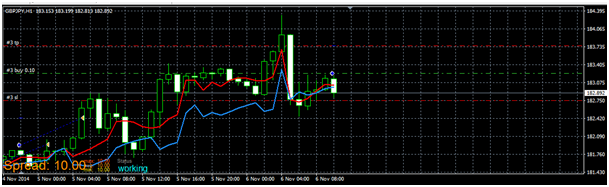
      indicator is imported and test it:
      0_1480900828855_upload-41168116-fa5a-41be-86fc-249b7132e83a

      all is working as expected:
      0_1480900845016_upload-50c4e285-57eb-4662-8d4d-1cb47e2daf86

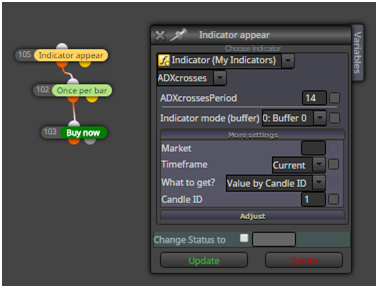
      here are other indicators, with other type of buffers, like histogram (histogram is also value),
      or arrows, like ADXcrosses, for this case you can use block called Indicator appear and select right buffer:
      0_1480900869624_upload-5f5c417b-20be-49b7-ab74-bc3c5ff4a0dc

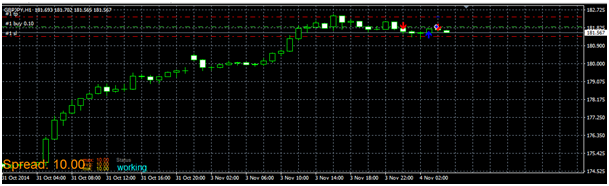
      and it is working ok:
      0_1480900886458_upload-24f7d0fb-0443-4c77-9c9d-3998c868628b

      Important:
      your indicators must be located in indicator folder and must have same name as in EA:
      C:\xxxxxxxxxxxxx\MQL4\Indicators
      (when experts are located: C:\xxxxxxxxxxxxx\MQL4\Experts)

      here are some indicators that I used in this tutorial (they are maybe renamed after uploading, rename it as you wish):
      1_1480900961494_miro1360_TDI_Dev_1.0.mq4
      0_1480900961493_miro1360_TDI_Dev_1.0.ex4
      0_1480901002364_ADXcrosses.ex4
      0_1480901026428_miro1360_DynamicMA.ex4

      all for this tutorial

      posted in Tutorials by Users
      M
      miro1360
    • Tutorial 08 - Candle Formations

      Here I provide few ways (not all 😄 because here is a lot of ways) how to create something called "pattern formations".

      Lets say we need identify Doji candle. Doji is candle with really small body, so our Doji have body smaller than 1.5 pips, we need it on H4 TF and we need alert + symbol on that candle, here is how to do it:
      0_1484369287687_upload-ef261628-8f8f-4f39-b682-30c928461472

      With similar way we can identify engulfing bar, this is how to find Bullish and Bearish Engulfing:
      0_1484369414854_upload-f24541b8-cc9c-4dce-b563-cd1b175bfe16

      When we need 2 or x bulls/bears in row, when each have some amount of body pips, this can be way:
      0_1484369499181_upload-ff5d3f8d-21c6-40e4-b979-b5e15dadd94c

      Or something more complicated called 3 White Soldiers / Black Crows, which are 3 consecutive bull/bear candles in row when each of candles is greater than 10 pips, and for Soldiers/Crows is each new High/Low/Open/Close higher/lower than previous this is how to do it
      (identify 3 bulls, identify if new High is higher than previous, the same for Low, Open, Close and opposite for sell):
      0_1484369618988_upload-3c44128a-91b5-488e-a2a3-69f7946c1797

      More complicated is to find Hammer based on % size, or any other Candle type based on some math calculation, this is one of ways how it can be done (other way can be using formula block + more variables, I did it with Custom code block as example)
      (firstly read into variables prices for calculation - Open, Close, High, Low ,,, next make variable which hold state when condition is meet in custom code, next do custom code with calculation and comparison, result save into our variable for state (conditionPass=true or false) and last is Condition for alert)
      0_1484369918619_upload-dce5a942-f3e7-4d1a-8186-935e5cdda3a6

      This is result from visual tester:
      0_1484370285716_upload-7e70689d-3b5b-45be-976a-95b7d00c426f

      shared link for this tutorial:
      https://fxdreema.com/shared/VrzXQhufc

      or import code into your projects to see all variables/inputs:
      0_1484370393489_Formations1.mq5

      Wish you green pips! 😄

      posted in Tutorials by Users
      M
      miro1360
    • Video Tutorial - Signals Dashboard EA [advanced] - looping Objects, arrays

      Here I show you how to create own Signals Dashboard using fxDreema with few blocks using loops and arrays.
      How can arrays and loops help you create project with few blocks instead of > 1000 blocks (mostly in multipair projects).

      Video (without voice 😄 😞 https://youtu.be/6wYxwRF6slw

      For this tutorial very small programming knowledge is needed.

      .... edit 07/2018: for some reason project is broken, custom code blocks are empty ....

      MT4 original project (MT5 si probably the same logic)
      0_1488659041688_Tutorial_Arrays.mq4

      edit: MT5 project: https://fxdreema.com/shared/ZA1quekHb

      0_1488658717958_upload-7dc87cf5-421c-4a7e-9aa8-22f588aa5b25

      0_1488659369061_upload-10cee1e1-a392-49a4-9db9-b703d6867508

      0_1488659107159_upload-7164f421-31ad-4b98-bd5e-82503a51c676

      0_1488659159713_upload-50129163-493a-4ac1-a6bd-5ebd03ba1ff1

      0_1488659198690_upload-cf3bec1c-8372-4660-9e0e-90b679917c93

      0_1488659295243_upload-0a4ea50b-2e60-475c-bc7b-05b28e5052c7

      have a fun

      posted in Tutorials by Users
      M
      miro1360
    • How to use ZigZag [advanced]

      After longer time I am adding new trick how I am using ZigZag indicator in fxDreema.

      First something about ZigZag. ZigZag is indicator mostly used for plotting another lines based on its highs/lows, or placing pending orders here.
      ... but it is repainting indicator == dont expect 100% accuracy.
      Most repainted is current leg - it can be used for comparing with previous legs (if last leg value is more or less as leg previous, but last leg is not good to use it for placing pending orders). Pending orders is good to place into previous legs.

      This current leg can have two scenarios, these (and it is important for understand) :
      0_1504568194979_upload-5ec4cc8e-a16f-4123-ac20-82d243bb8033

      0_1504568224706_upload-7bd36fd3-7c4c-467c-be7b-0ef06c667153

      Question is, is it possible in fxdreema to find, if current leg is "low" or "high" ?
      Yes, it is, but it is little tricky.
      In fxdreema can be legs found by ID. But you cant find if last leg is L0 or if it is H0. You can not use simple condition for comparing current price with zigzag leg ID(0).
      For right comparison you need some small algorithm which create order for IDs (or in another words, find if L0_id is > or < as H0_id).

      For this I create small algorithm which write zigzag candle ID values into variables called var_zz_H0_ID, var_zz_L0_ID, .......
      parameter zz_ID_interval is candles interval, where searching is done
      (note, important are only H0/L0 IDs, but I am creating this from my previous project where I had also H1 2 and L1 2 IDs, just for this example ignore H1,2 L1,2):
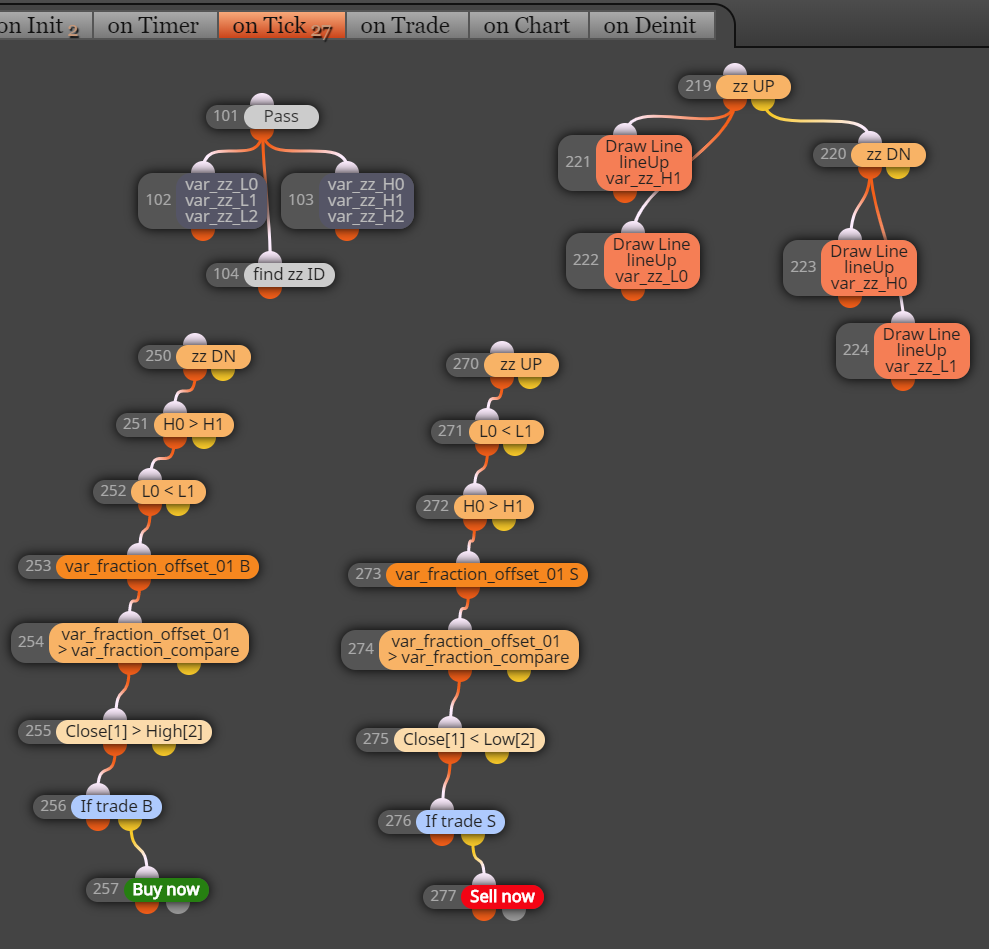
      0_1504568862649_upload-8699c6d5-60b3-465c-a653-8cd1c1b7d8e2

      After this algorithm I can compare/find if last zigzag leg is Up/high or Down/low:
      0_1504569027173_upload-970c67dc-7da1-4c48-98c5-87767fc76063

      When I know this, I can use zigzag prices in right way (here for pending orders or ploting lines where current (not closed) zigzag leg is ignored) :
      0_1504569151794_upload-e0f02ede-783a-436a-80af-9e2efda56f49

      Inputs and variables used in project:
      0_1504569203628_upload-113f66e3-88b1-4338-a065-ed58c9e3bd0f

      0_1504569211400_upload-09f34ee5-1ea2-4a4e-930e-a7e767673921

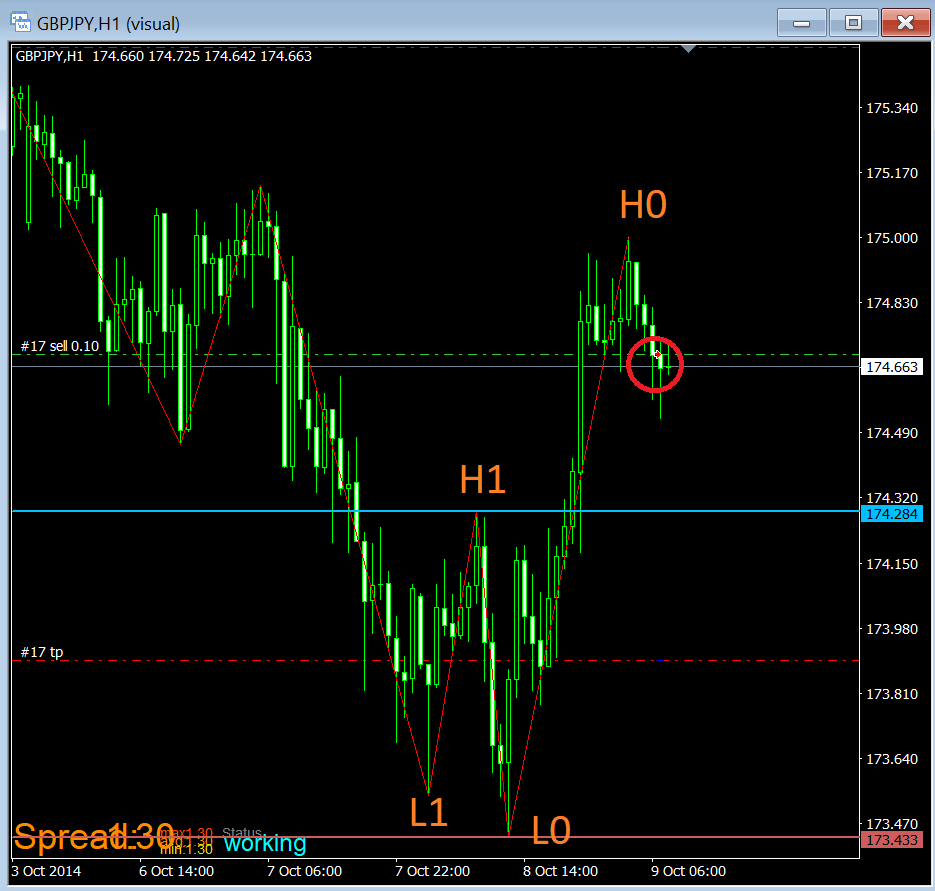
      And result: ploting lines in tester where ZigZag current leg is ignored:
      0_1504569254690_upload-fcd33cc7-d3fb-411f-90f7-034faf07e409

      0_1504569261141_upload-5198fef5-cf44-4f31-a7bd-7d480ab6d503

      Shared project:
      https://fxdreema.com/shared/8eW5li27d

      Important note: Algorithm in this project was created fast, is not perfect, is slow and crazy behaviour can be expected. It can be done in better way, but I never needed another form 😄

      Have a fun 🙂

      posted in Tutorials by Users
      M
      miro1360
    • RE: FxDreema is awesome!

      Do you think your karma will improve if you predict and talk about the karma of others and you don't focus on your own?

      I advise you:

      • forget about forex, forget about investing, forget about gambling
      • instead of crying, find a regular job and finally start to fulfill your life with happiness, we can't help you here
      • I'm sure the admin is making a refund, just ask him and say it didn't meet your expectations
      posted in General Discussions
      M
      miro1360
    • RE: closing trades after x period IF they're in loss

      generate mq code and import it to your projects from this link:
      https://fxdreema.com/shared/1xokGRsgc
      dont forget click between sections "on Tick" and "on Trade", both are used
      0_1481132378264_upload-6215a9dd-930f-4d69-bcba-c482fe45a3da

      0_1481132403012_upload-6c06f693-cc7e-4c29-9f65-0025c6c01894

      also 1 variable:
      0_1481132429391_upload-56d835a0-fbfa-42f1-bd2a-2857bea55c3b
      for opposite situation create another one variable ...

      hope you understand it 😄

      posted in Questions & Answers
      M
      miro1360
    • Tutorial 04 - EMA cross, part 4 - more Buttons [beginners]

      In this tutorial you can see, how to control part of blocks with more buttons, here is also solution of homework from tutorial 3

      https://fxdreema.com/shared/UIUJQBy7d

      0_1480640827545_upload-a5dc4e37-d904-475f-9eb9-81da5fd67425

      posted in Tutorials by Users
      M
      miro1360
    • RE: Help With Fibonacci

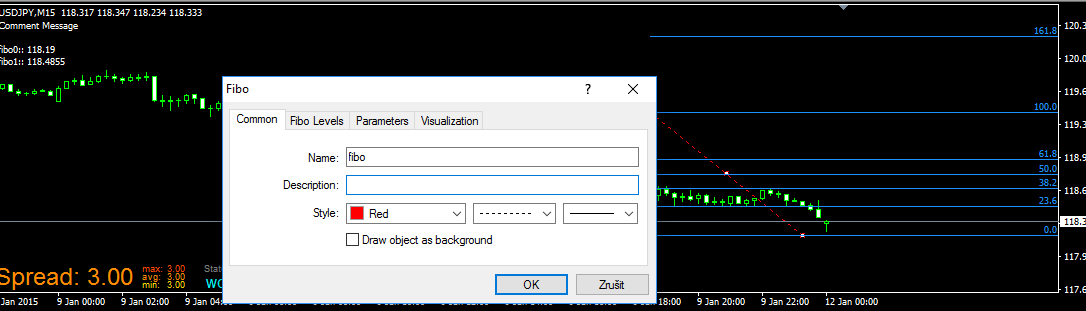
      for me fibo values are working

      https://fxdreema.com/shared/oU9M1gD5d

      0_1486070774448_upload-b37b2908-bba4-48cf-8b0f-76f49ce4fd2d

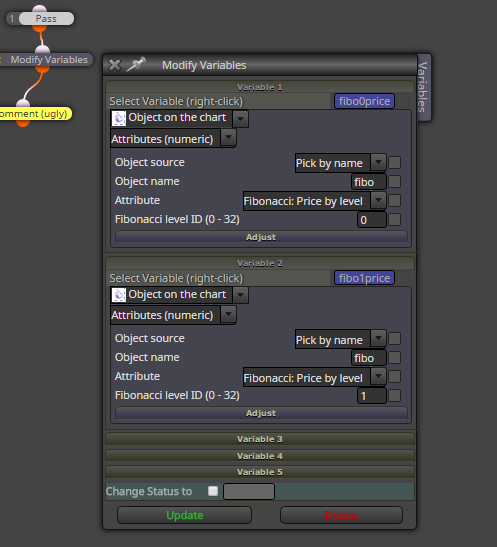
      be sure you have right name in blocks as your object have:

      0_1486070796215_upload-bc78741d-199a-4907-abad-5d2dce4cb7bf

      0_1486070826218_upload-0e5e6b9b-96bb-4833-af62-5dea3ad9f568

      posted in Questions & Answers
      M
      miro1360
    • Tutorial 05 - EMA cross, part 5 - Buttons behavior [beginners]

      in this tutorial I show you how to apply some behavior to Buttons, like turn off Button after trade is opened and also how to use custom code block to recolor this button, hope you will like it ...

      with this Tutorial 05 we also closed this EMA cross EA tutorials, for next tutorials I choose another example

      //////////
      you need to know, that with this button behavior you can work also in on Chart section which have faster reactions (or on Timer), but that is not working in tester, so that is why I show you how to work with this behavior in on Tick section to have your EA with buttons under fully control in tester
      //////////

      https://fxdreema.com/shared/Lti2EttK

      MQL5: https://fxdreema.com/shared/f8D0nyZKc

      0_1480644201764_upload-aea06637-ccbc-4ff5-b30a-c6749731e506

      0_1480644391991_upload-1a9aed2c-c532-4433-a476-8f805cea43ab

      posted in Tutorials by Users
      M
      miro1360
    • RE: Open new order with new lot size depend on how far loss in pips are!

      you can do all calculations ...
      here is example of some calculation, edit it for your purposes:
      https://fxdreema.com/shared/ODGXMpm2c

      ...

      posted in Questions & Answers
      M
      miro1360
    • 1
    • 2
    • 3
    • 4
    • 5
    • 9
    • 10
    • 1 / 10