I dont see here problem with extend stops, look here:
(I used onTimer section for blocks, but the same happen with on Chart, dont be confused)
https://fxdreema.com/shared/KQV8gHcfd
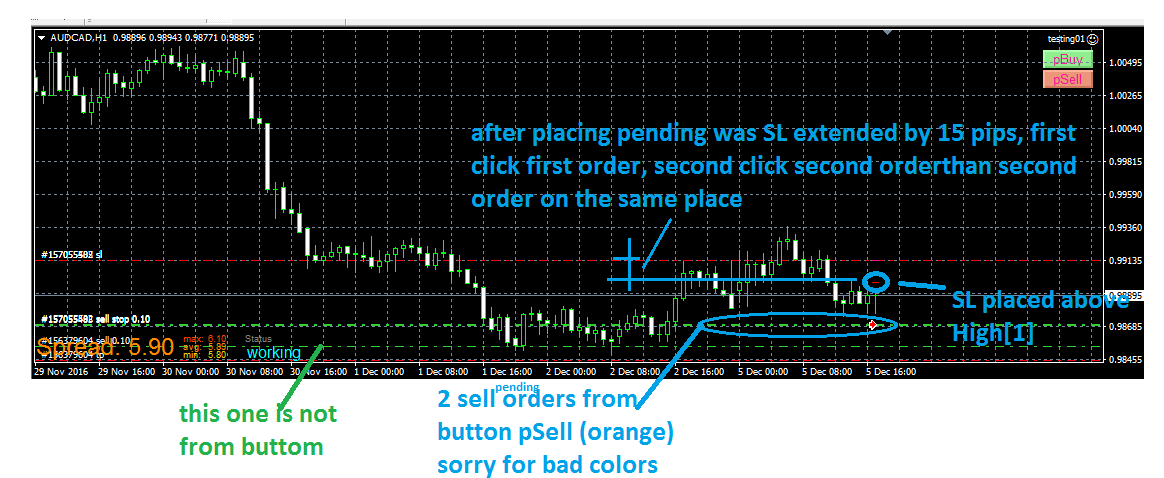
I dont see here problem with extend stops, look here:
(I used onTimer section for blocks, but the same happen with on Chart, dont be confused)
https://fxdreema.com/shared/KQV8gHcfd
before block extend stops try place another block: For each Pending Order and apply some filters in this block (like Not more than "n" orders: 1)
We are going read values from Objects on the chart which are controlled by indicator, not values from buffers, that means, we dont need indicator in My Indicators because we are not going work with indicator directly.
Indicator must be inserted into chart manually (into same chart with EA).
here is indicator (note, is renamed, you can rename it as you wish)
0_1480901745242_Shved Supply and Demand (e600) length.ex4
and here is shared link to this strategy:
https://fxdreema.com/shared/JyxzKfdwd
now look how is this indicator working:
is ploting dynamic zones:
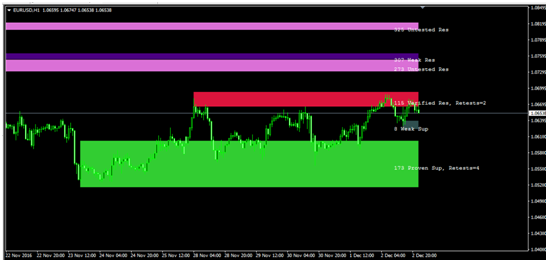
these zones are not from buffers, but from objects, so look how they are named:
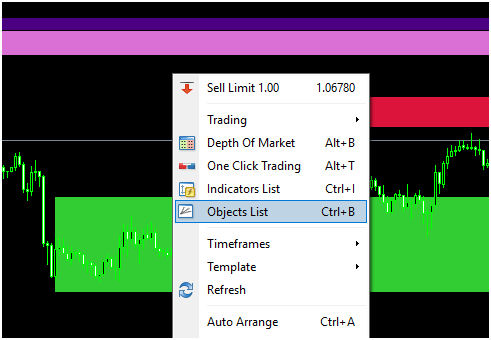
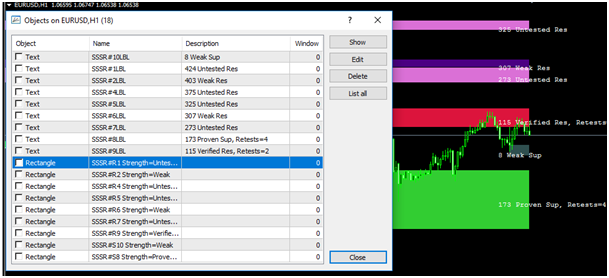
See, Rectangle type with name begins as "SSSR" and than some incrementation with "R" or "S" and next info like "Weak", "Proven" ...
Our strategy can be (you can create another):
First we need 2 blocks which are selecting objects (rectangles) based on criteria:
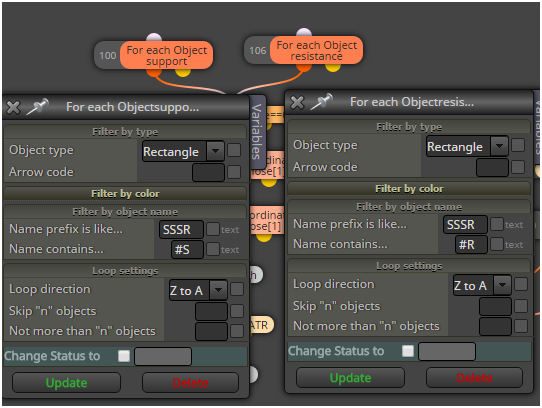
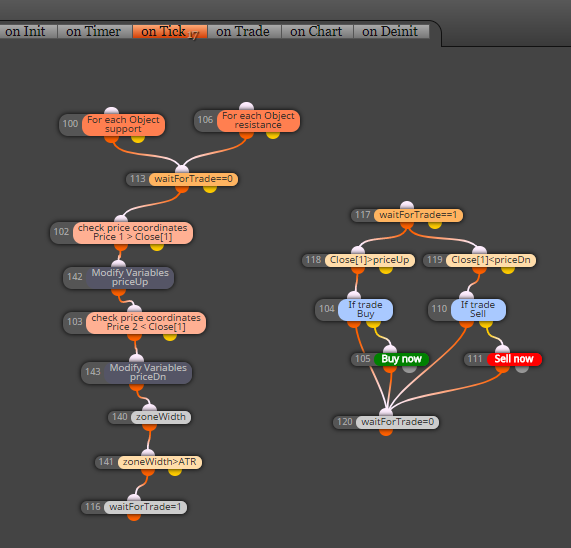
next is switch which control if was price inside rectangle before and if EA is waiting for trade
after this are blocks which are working with selected rectangles
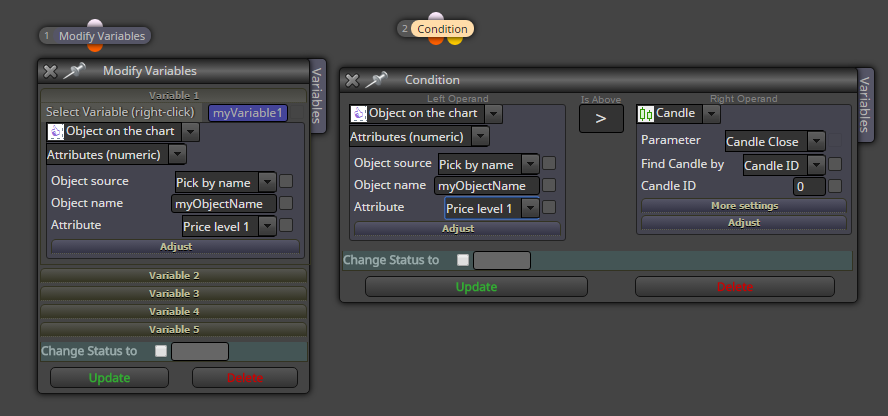
these blocks make some comparison with candle price and variable blocks save price from selected object into variables priceUp and price Dn for next comparison:
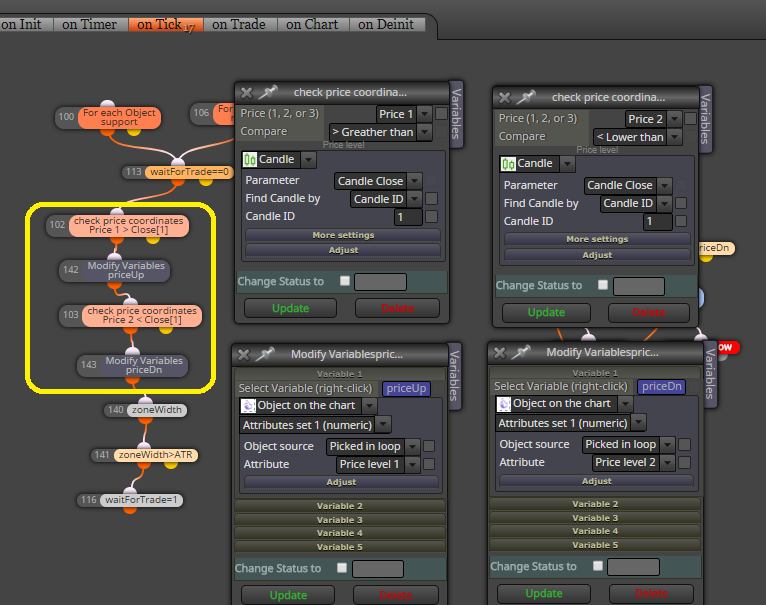
here are all blocks together needed for this strategy:
and this is result:
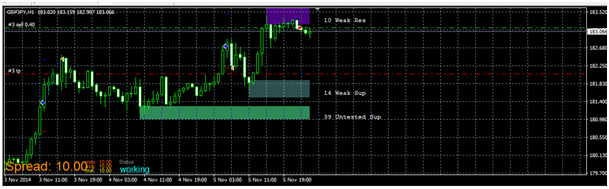
note: this is not profitable EA and is not for your real account, this tutorial shows only way, how to work with object from some indicators
note:
that is all ...
1.) Import with mq file:
Here I show you, how to add custom indicator into My Indicators in fxdreema and how to use this indicator in project. You can take any indicator, for this tutorial I created own indicator based on Trader Divergence Index. It are few moving averages over RSI and my own enhancement channel based on Standard Deviation multiplicator over market line (third MA).
First you need is know, how indicator is working and which values are in buffers.
For this, place indicator into chart and see:

On that picture observe indicator buffers in settings window how they are numbered (0,1,2,3,4, ...), these buffer indexes are important numbers for you.
In builder click on My indicators - Add custom indicator - Select, and find your mq file with indicator and ok:

.
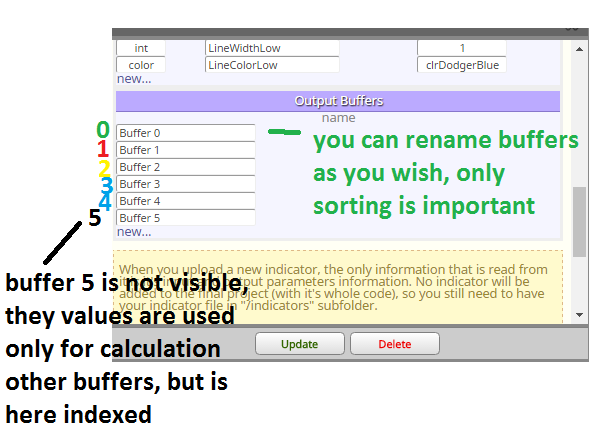
click update and now you can working with this indicator ... see there buffers, parameters,
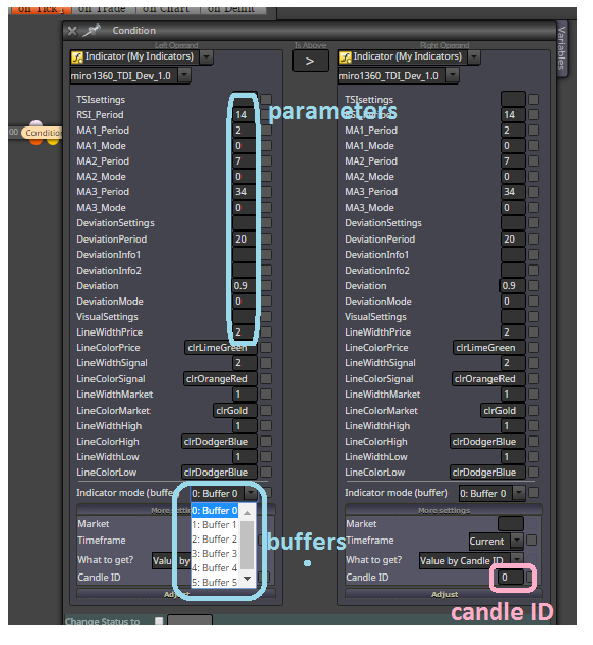
and next important: Candle ID ... for this candle ID you can observe from chart what values are in buffers
for my indicator it are values somewhere from 0 to 100, sometimes >100 or <0
Candle ID are indexes in buffers and buffers are holding values (for each candle ID is here value), small example:
Buffer0[0]=50
Buffer0[1]=52
Buffer0[2]=51
etc ... Buffer0[0]=50 means, that Buffer0 have on candle 0 value 50, Buffer0[1]=52 have on candle 1 value 52 ....
when are there negative candle indexes, like -1,-2,... you can read values from indicators that are ploting values into future (like ichomoku indicator) ... if you will this value, only you need is give negative Candle ID into block where you are working with indicator

note, you need compare values from indicator with adequate values (for this indicator, when value from buffer is 60, you can not compare it with value from candle price 1.1200, because how?)
when you will make cross green line above red line on candle 0 (candle 0 is not closed and it means repainting, but is fresh), this is way:
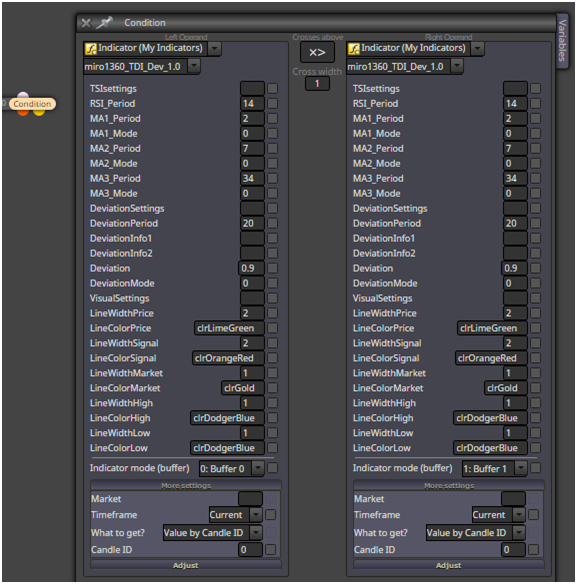
you can take cross also from candle 1 (this is closed candle and is not repaint - repainting this candle depends on indicator, because some indicators repaints all values) ... Candle ID in this case = 1
or you can make cross with two condition blocks with logic:
Buffer0[2] < Buffer1[2] AND
Buffer0[1] > Buffer1[1]
when you will make cross above value, lets say green line crosses UP value 68 (level 68) on closed candle 1, this is how to do:
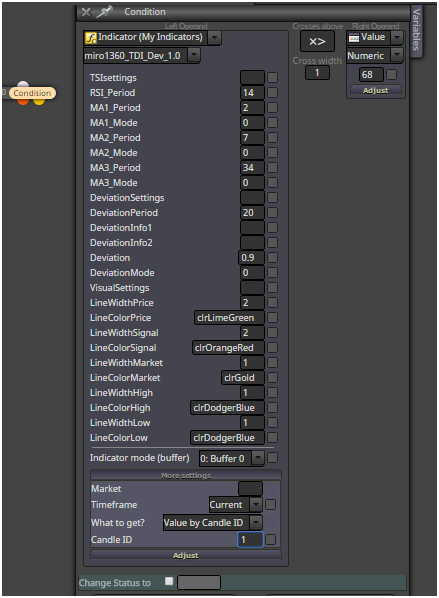
2.) Import without mq file, with ex file:
If you dont have indicator mq file and only ex file, import can be done this way:
example is my ex file from indicator miro1360_DynamicMA, look for indicator behavior:
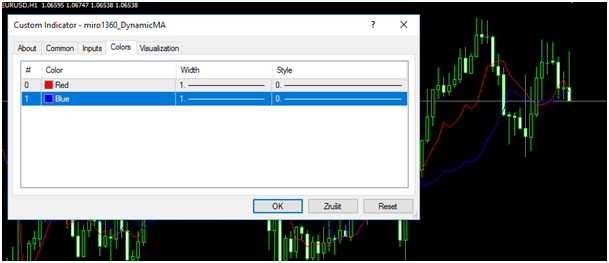
you see here 2 buffers
and also some input parameters:
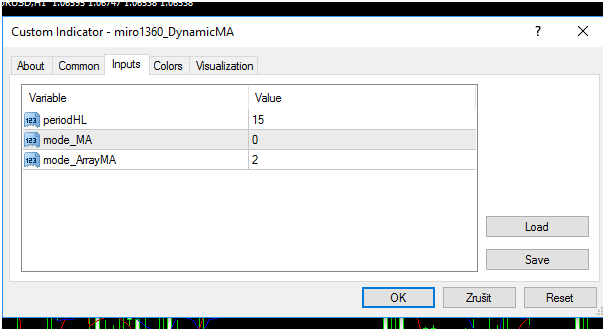
now go to Builder and find your indicator ex file with My Indicator manager:
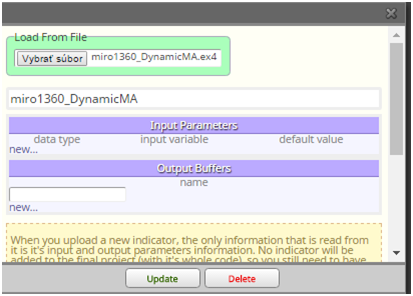
you see, after selecting indicator here are not buffers and parameters, so you need type them manualy, keep data types correctly, instead of enum datatypes you can use int (maybe, I am not sure with implicit conversion in MT5) ...
this picture show you correct values for this indicator:

click on update
indicator is imported and test it:
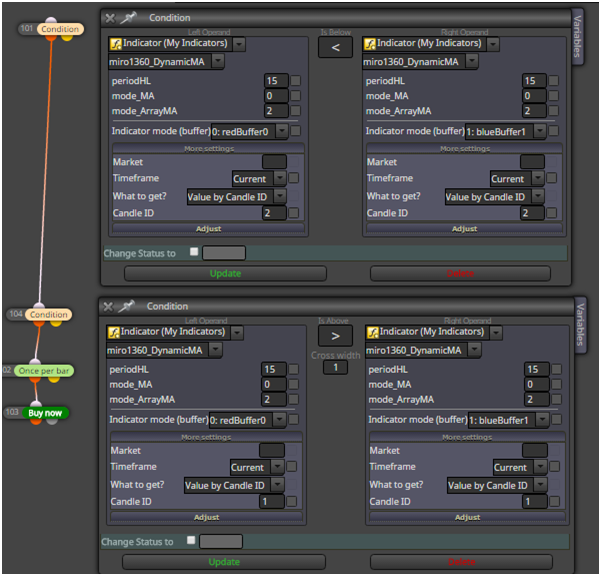
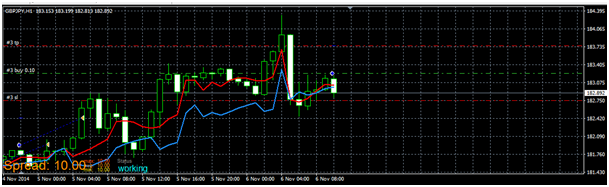
all is working as expected:
here are other indicators, with other type of buffers, like histogram (histogram is also value),
or arrows, like ADXcrosses, for this case you can use block called Indicator appear and select right buffer:
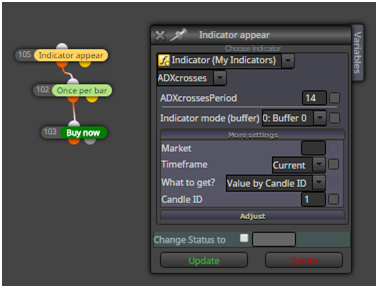
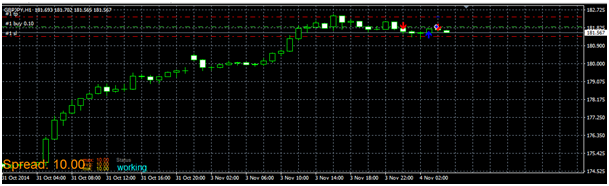
and it is working ok:
Important:
your indicators must be located in indicator folder and must have same name as in EA:
C:\xxxxxxxxxxxxx\MQL4\Indicators
(when experts are located: C:\xxxxxxxxxxxxx\MQL4\Experts)
here are some indicators that I used in this tutorial (they are maybe renamed after uploading, rename it as you wish):
1_1480900961494_miro1360_TDI_Dev_1.0.mq4
0_1480900961493_miro1360_TDI_Dev_1.0.ex4
0_1480901002364_ADXcrosses.ex4
0_1480901026428_miro1360_DynamicMA.ex4
all for this tutorial
upload here or somewhere that indicator and post link here ... maybe that will be better to show you visually ...
learn to use constants as input (check tutorials section)
instead of that "enum" boxes (as you named it) you can use number (like 0, 1, 2, 3, etc) ...
if you like rolled checkbox you can use data type as in indicator ...
in this tutorial I show you how to apply some behavior to Buttons, like turn off Button after trade is opened and also how to use custom code block to recolor this button, hope you will like it ...
with this Tutorial 05 we also closed this EMA cross EA tutorials, for next tutorials I choose another example
//////////
you need to know, that with this button behavior you can work also in on Chart section which have faster reactions (or on Timer), but that is not working in tester, so that is why I show you how to work with this behavior in on Tick section to have your EA with buttons under fully control in tester
//////////
https://fxdreema.com/shared/Lti2EttK
MQL5: https://fxdreema.com/shared/f8D0nyZKc


In this tutorial you can see, how to control part of blocks with more buttons, here is also solution of homework from tutorial 3
https://fxdreema.com/shared/UIUJQBy7d

I think when you use in some way global variables it can be possible, it can be possible also in some way of reading external files, or even using portion of custom code ...
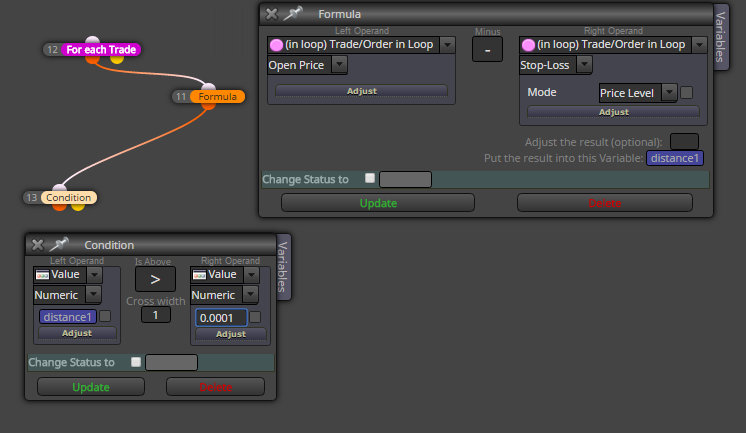
I forgot this, you can that result with function MathAbs convert to absolute value because there is possibility of negative result ...
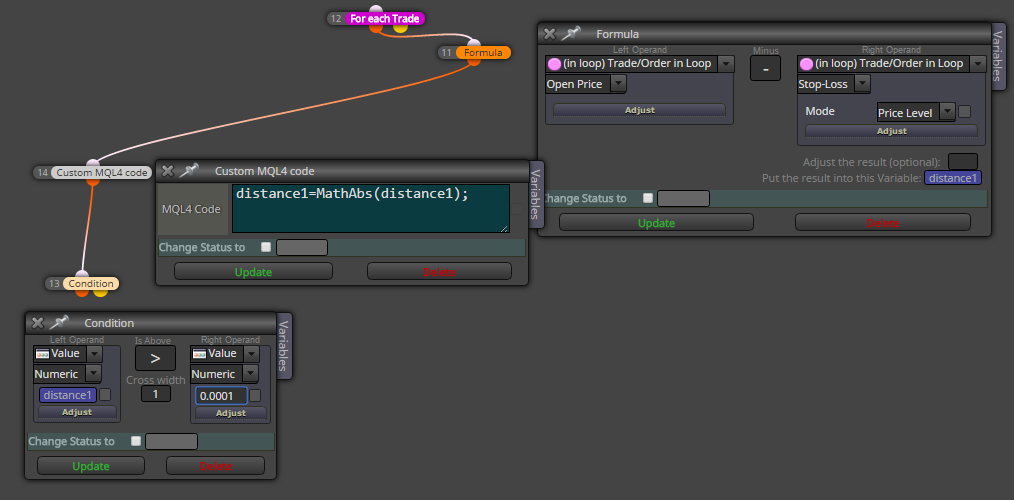
have you tried this?
save it into variable, but dont forget, in variable it is saved in price fraction (if you need that in pips, you need adjust result with some multiplier (*10000 or *100 for jpy pairs) ... or with function ...)
For each Trade block goes through all trades, if you apply some filter in parameters, you can control it ...
import it into fxdreema ... but also you can work with candle volume directly ...
use Condition block, select Candle, parameter: Candle Volume ... (when is candle down, volume is red, up candle is volume green)
I am working on tutorial for this, but for now you can check this:
https://fxdreema.com/help/working-with/custom-indicators
This tutorial is about buttons and how to use them with EA.
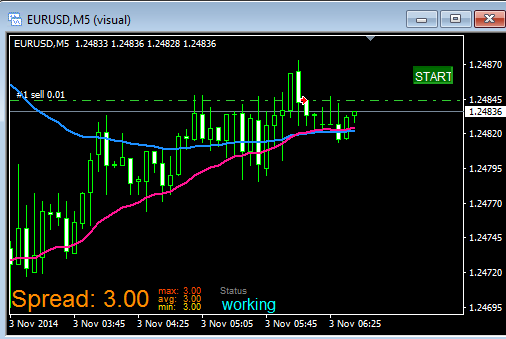
All steps are here:
https://fxdreema.com/shared/wtzLlcfXc
you can again import this EA into your projects
This is our first use on Init section where are inserted buttons (they can be inserted also in on Tick, but I explained you how to work with section on Init and why sometimes use it):

Do your homework (description in EA).
In tutorial 01 I showed how to create easiest counter cross EA, in this tutorial you will see how to add inputs into EA with fxdreema.
Click on this link with EA for more details:
https://fxdreema.com/shared/G8goTenZb
When you will directly import that EA without creating block after block, do this:
generate mql code and save it somewhere:
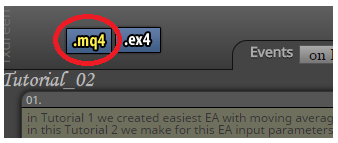
import this generated file into projects:
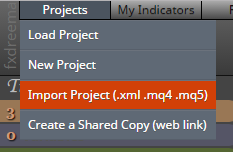
Now is EA imported in projects and you can start work with them.
See step 1. (description in EA). where I am talking about constants, constants in fxdreema:
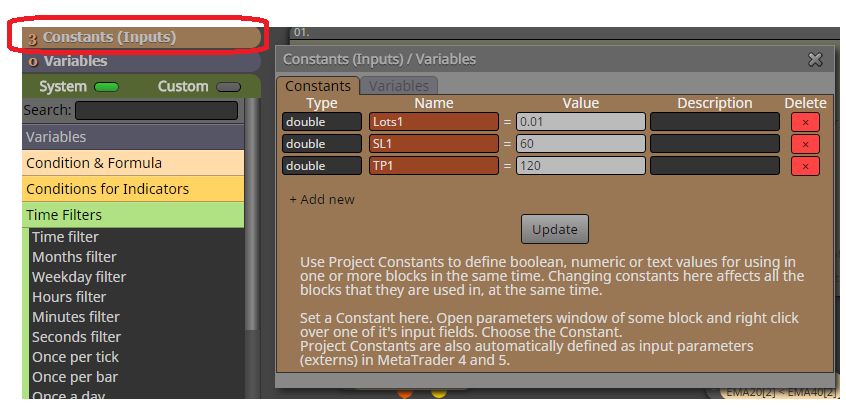
For adding constant into block parameter, do this with mouse right-click in field where you will add constant and select this constant. Now is this constant as Input parameter. But when you use constant as input parameter, leave input check-box unchecked:
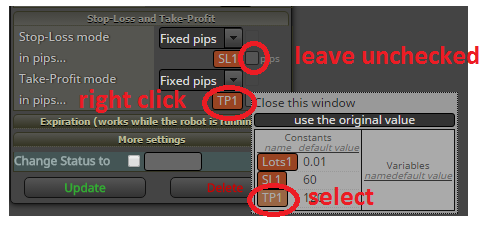
Why to use constants in fxdreema instead input check box? Because you can add the same constant into more blocks.
You have successfully created input parameters for EA. Values are changeable in tester.
Hope it was fast and clear.
Next tutorial will be about buttons for this EA.
using some of filters, like Check trades
When you set spread in tester to 0, you have spread 0 .... (I have it) ...
with your EA you can not test results line to be horizontal ...
but spread is 0, if you check your trades with visual tester, ther are not offseted from Bid price (that means bid and ask is aligned) ...
@fxDreema ... that is bug .... but you can use Constants instead of this input, I am working on tutorial how to do this ....
Hi, I decided to share few tutorials, how to work with fxDreema.
All what I share is my style of creating EAs in fxDreema. If you are newbie, you can learn something here.
I start step by step, from beginners to advanced tutorials. I am not best in teaching somebody, also my english is not oxford, but I created a lot of EAs.
I share link with fully working EA where you find a lot of comments. You can work in this link, or better, you can generate mql code and import it into your new project to work with.
In next tutorials I will not commented all things, only news, or what I decided as important.
For next questions you can ask here in forum.
First tutorial is, how to create easiest EA, when 2 moving averages crosses, in this cross we open trade in counter-direction of cross. This tutorial is splitted into more parts, because I will show you how to make this "nonProfitable" strategy into human control to be potential profitable.
Click here for first part and enjoy:
https://fxdreema.com/shared/UOM1aUO5b
